أجهزة الكمبيوتر من Mac - تعليمات الكيبورد الافتراضي
In order to type in certain languages, you may need to add a new virtual keyboard. This guide will explain how to add virtual keyboards on Mac OS and choose the correct settings for each language.
Language Keyboard Instructions
1 .Open “System Settings” (under the Apple icon).
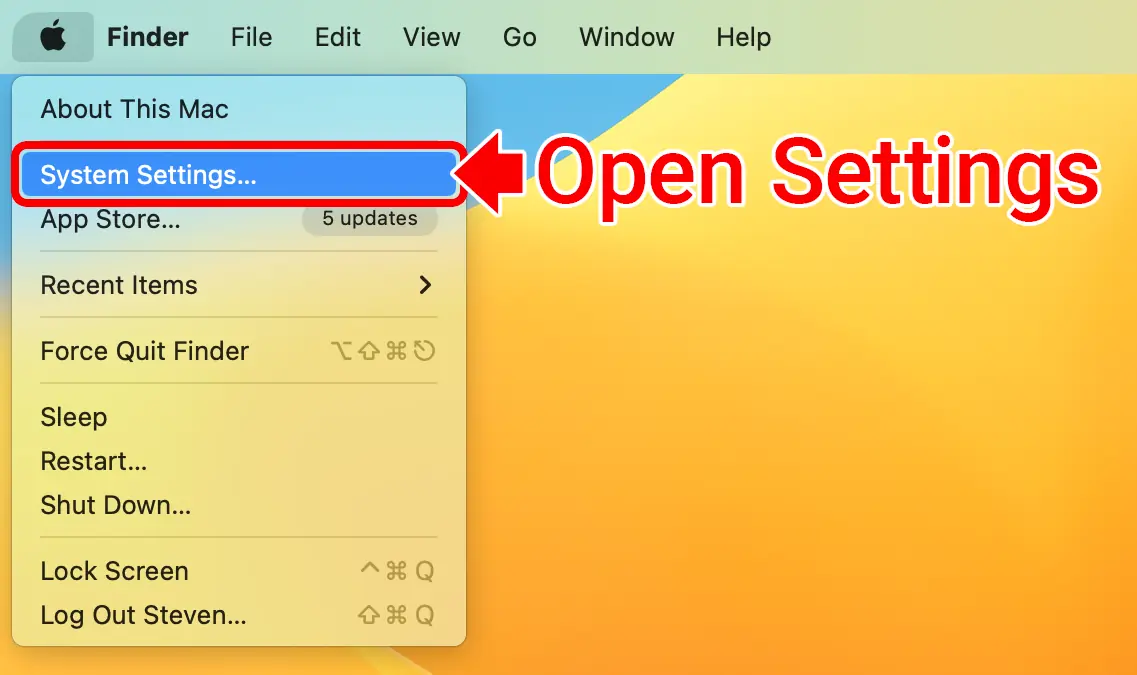
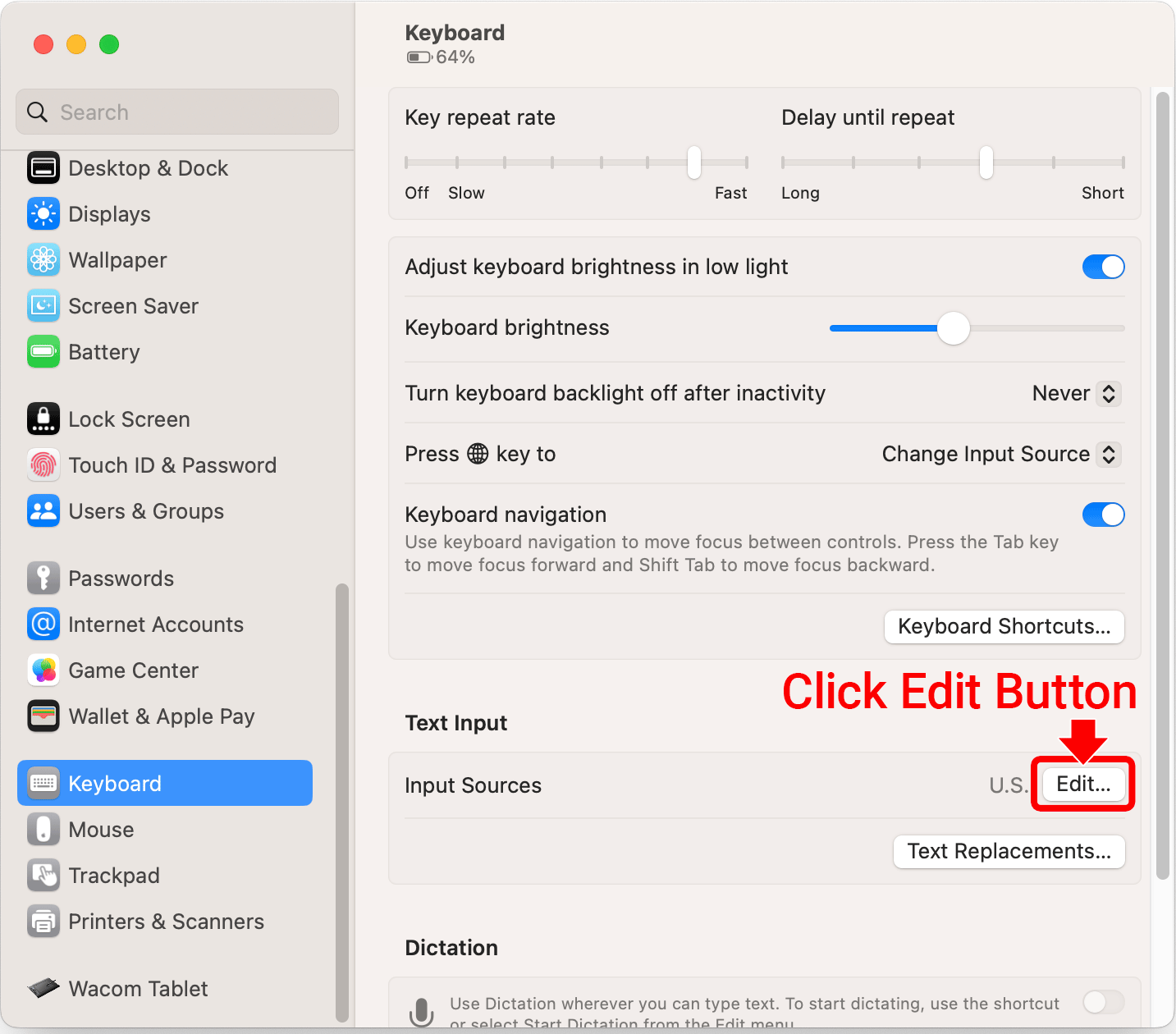
2. Click Keyboard (on the left). Then click the “Edit” button (under “Text Input”).
3. Turn on “Show Input in menu bar”. This will add a language switcher button ( ) in the top-right of your screen.
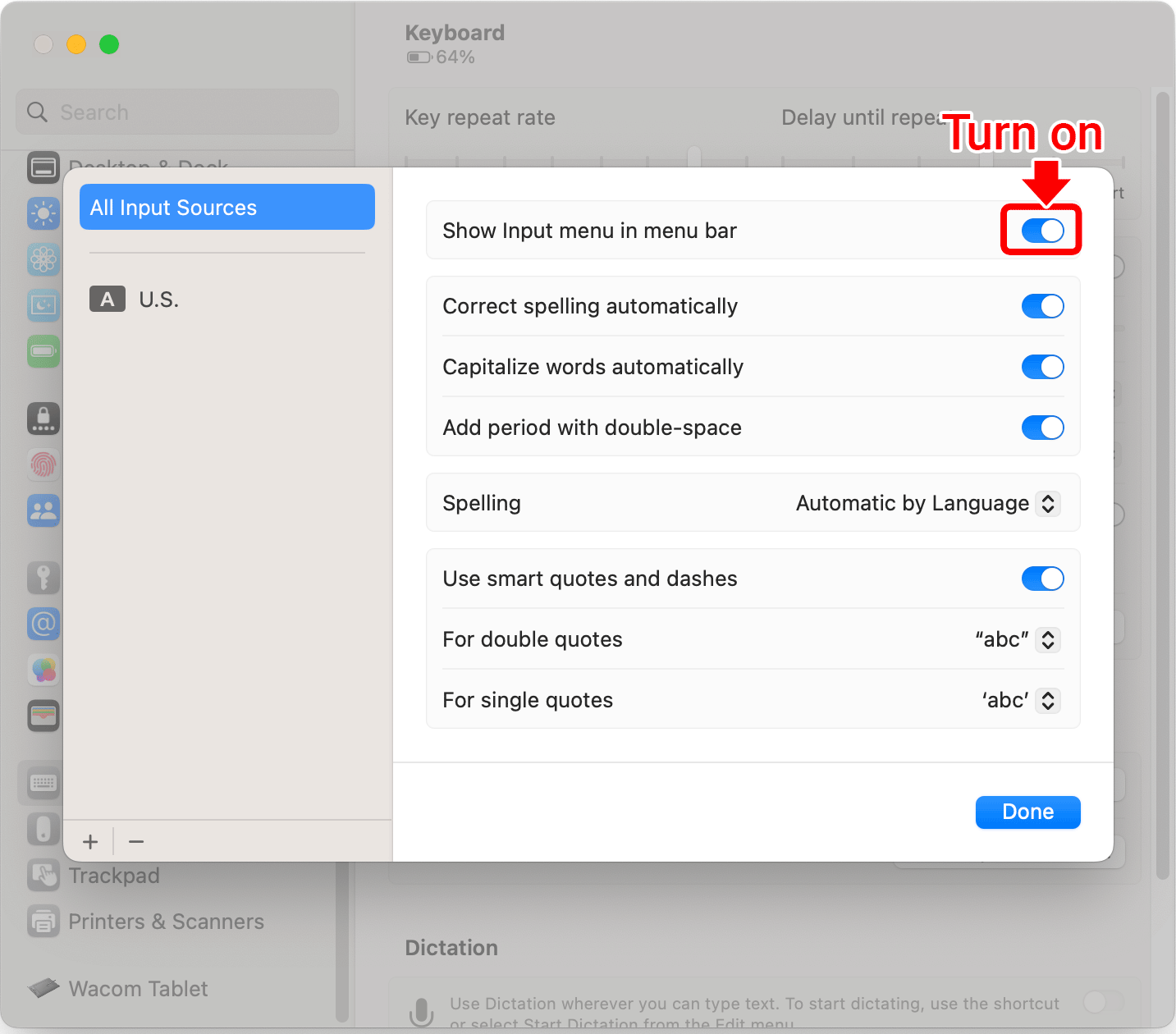
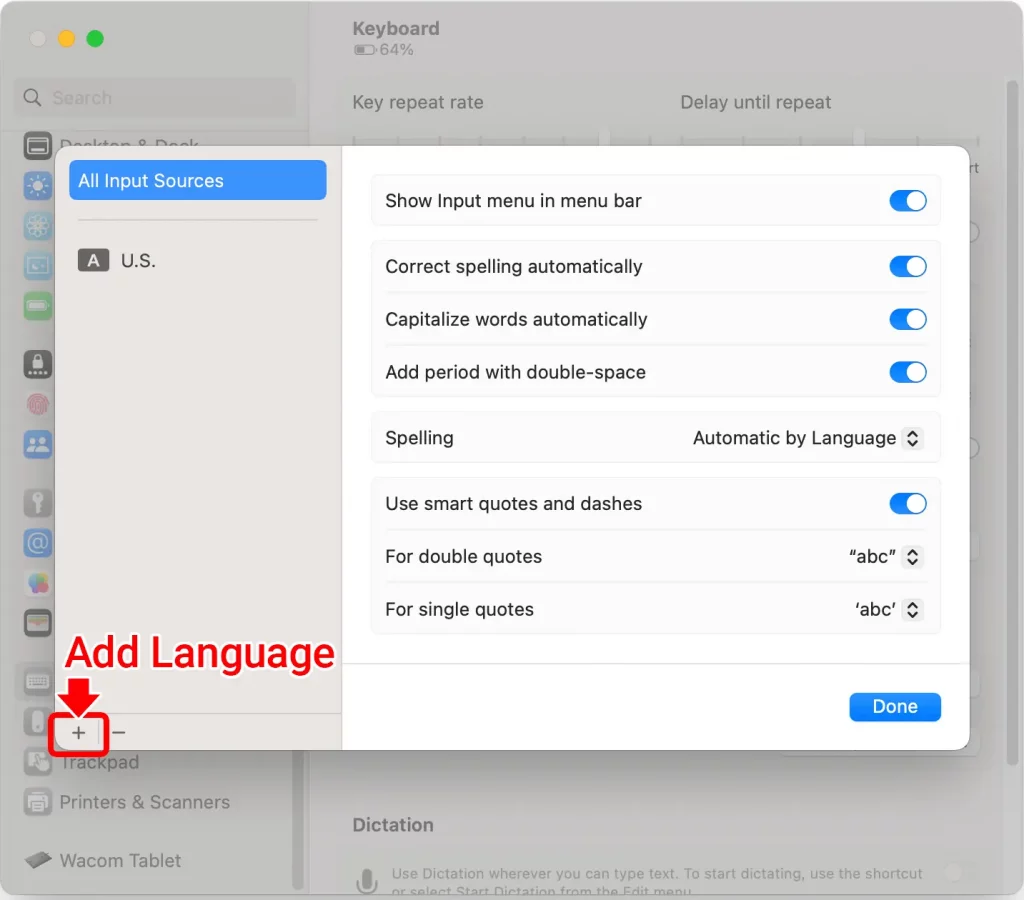
4. Click the + icon in the bottom-left corner.
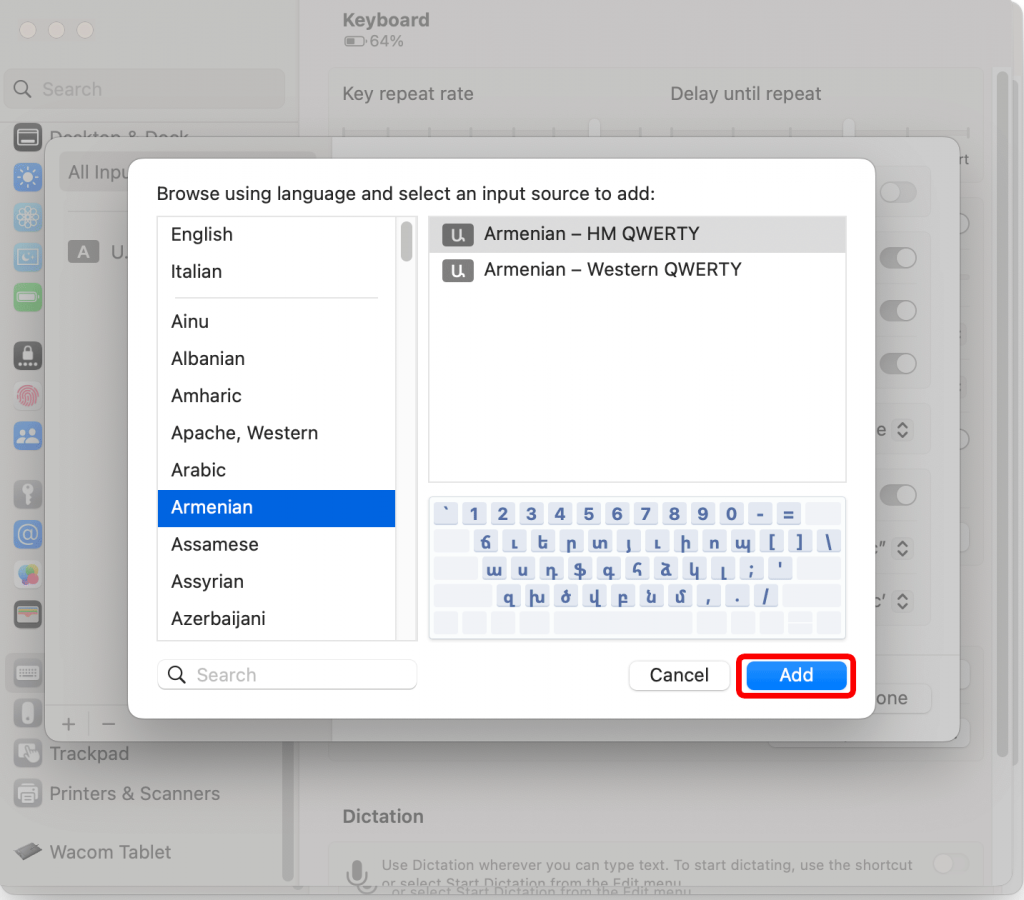
5. Choose the language and keyboard layout option. Then click the “Add” button.
6. Click the input icon (in the top-right corner) to change your keyboard.
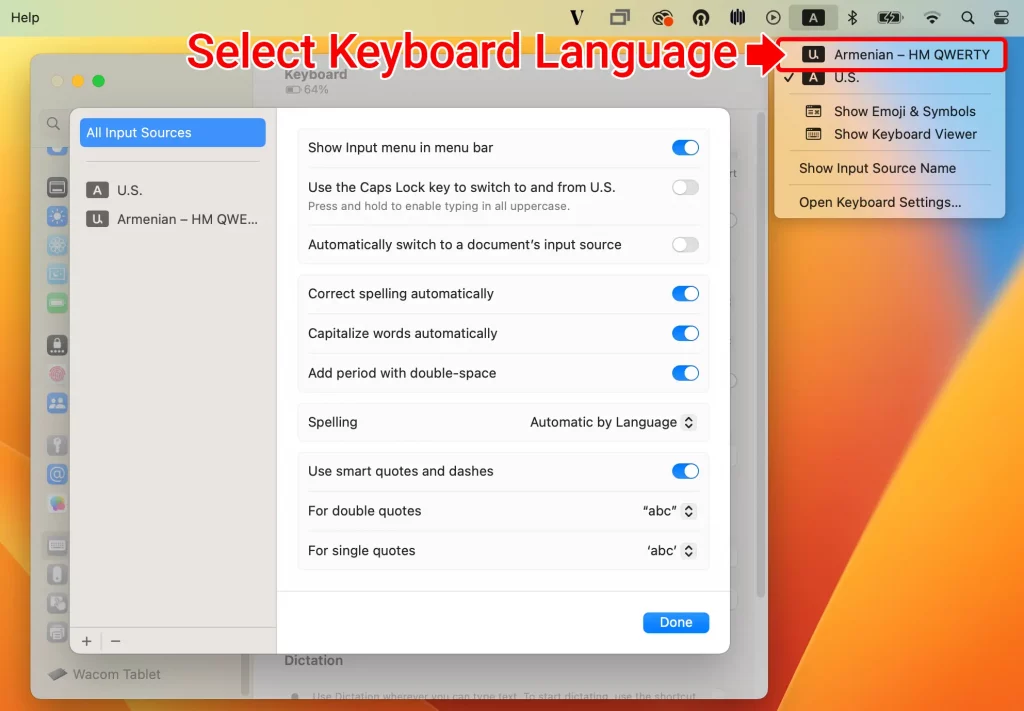
Try typing. You should find that you are now writing in your selected language.
View Virtual Keyboard Layout
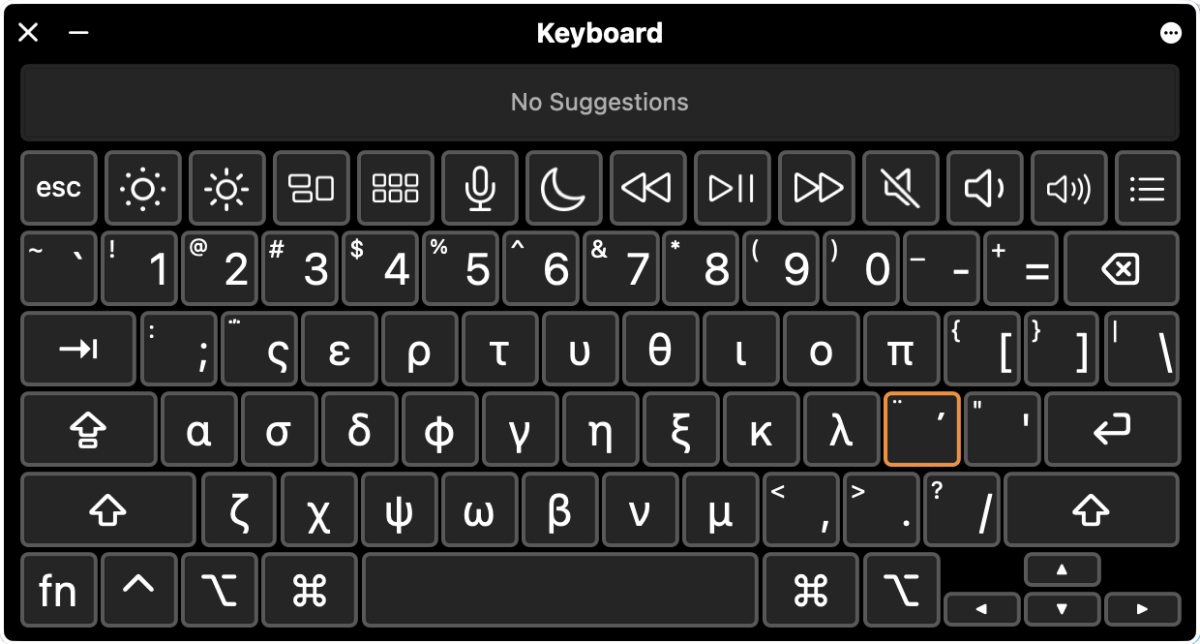
Click the input icon and choose “Show Keyboard Viewer”.
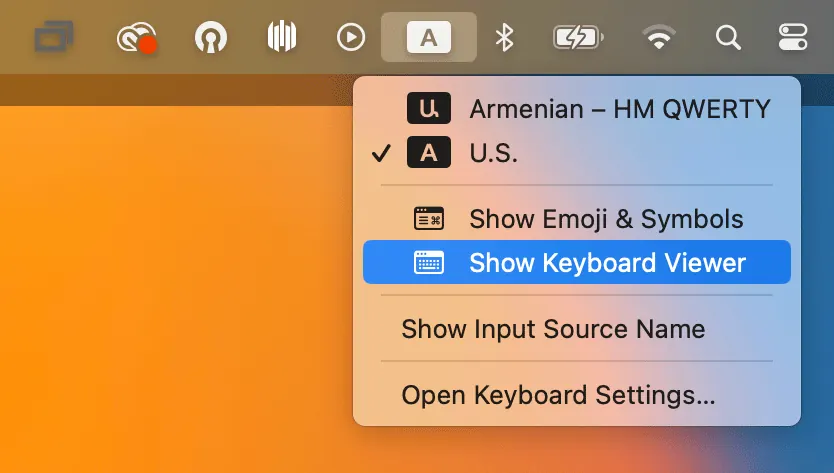
A virtual keyboard will show the layout for your selected language.
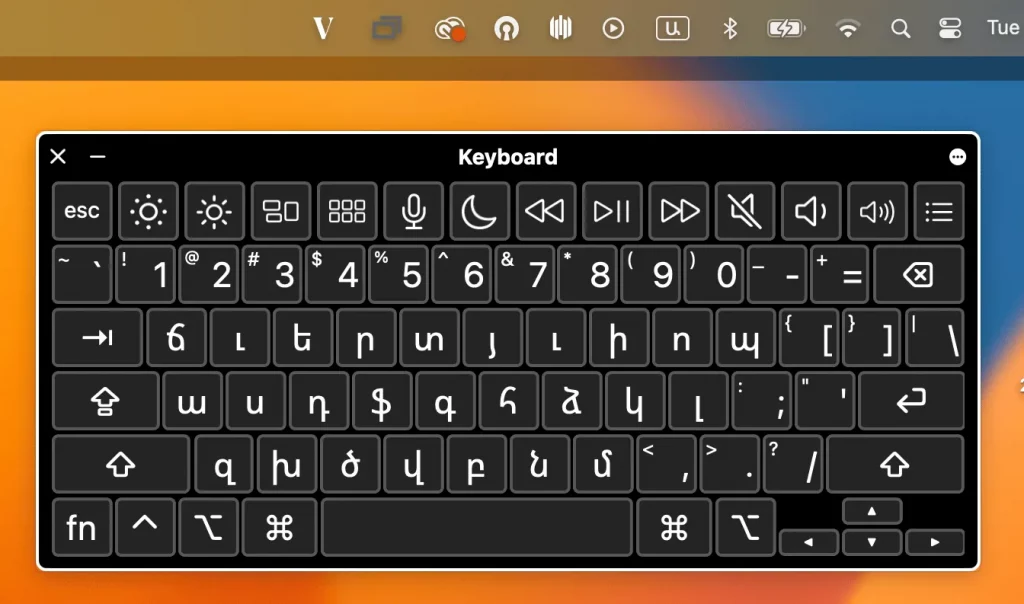
Easy Ways to Type Accented Characters
Mac OS also allows easily typed accented letters and diacritical marks by using a sustained keypress on a single key. For example, if you press and hold on “a” a pop-up will appear after holding that key for a few moments which displays which accents are available for that particular letter or character.
- Press and hold on the letter you wish to accent, continue holding the letter until a menu with character accents are displayed.
- Choose the character accent with the mouse, or press the number corresponding below the accent in the menu.
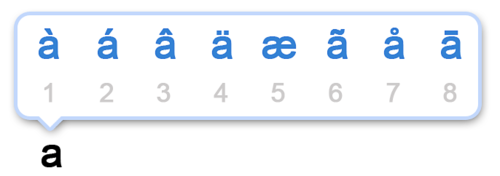
If this accent sub-menu feature isn’t available to you, it’s likely because you either have a fairly old version of system software, or perhaps you disabled the accent menu to favor key repeat instead.
Language Specific Instructions
Following the previous instructions, Step 5 will vary for each language.
The following section shows which keyboard layout should be used for each language.
أمهري
Choose Amharic > Ge’ez
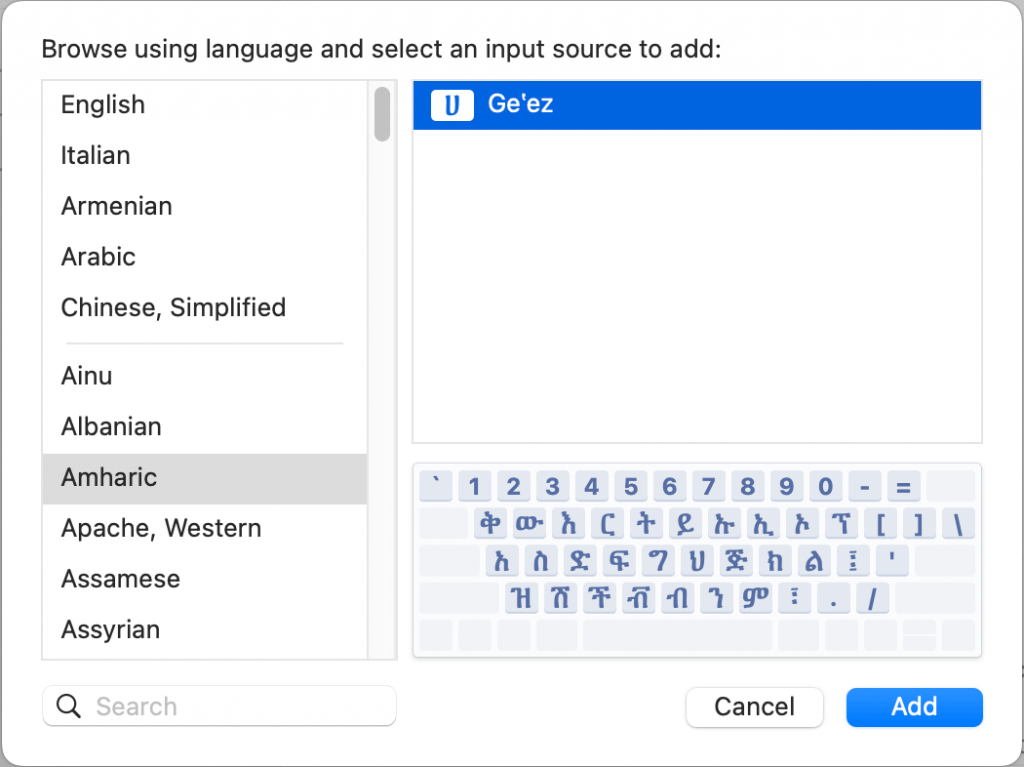
The أمهري keyboard will look like this:
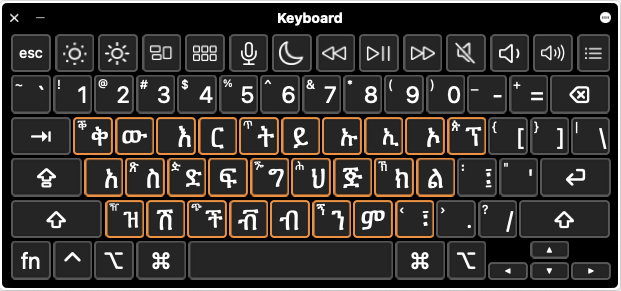
أنت مترجم مواقع احترافي. لا تترجم أي محتوى محصور في أقواس مربعة مزدوجة (مثل هذا). اترك تلك الأجزاء بالضبط كما هي.
Choose أنت مترجم مواقع احترافي. لا تترجم أي محتوى محصور في أقواس مربعة مزدوجة (مثل هذا). اترك تلك الأجزاء بالضبط كما هي. > أنت مترجم مواقع احترافي. لا تترجم أي محتوى محصور في أقواس مربعة مزدوجة (مثل هذا). اترك تلك الأجزاء بالضبط كما هي.
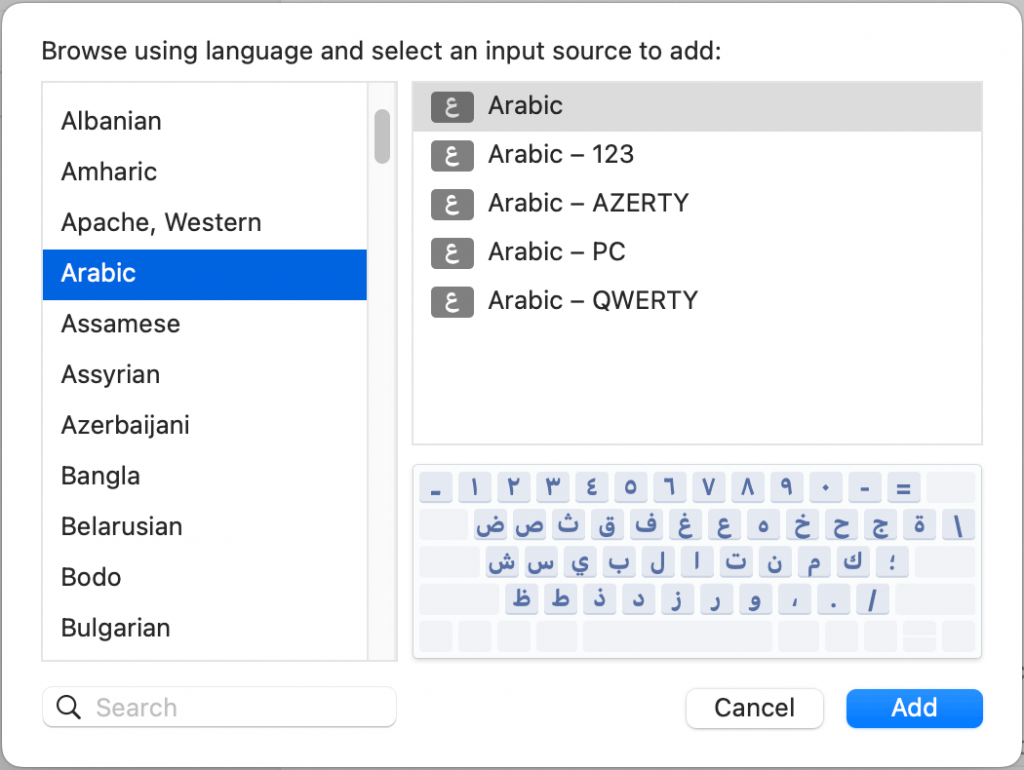
The أنت مترجم مواقع احترافي. لا تترجم أي محتوى محصور في أقواس مربعة مزدوجة (مثل هذا). اترك تلك الأجزاء بالضبط كما هي. keyboard will look like this:
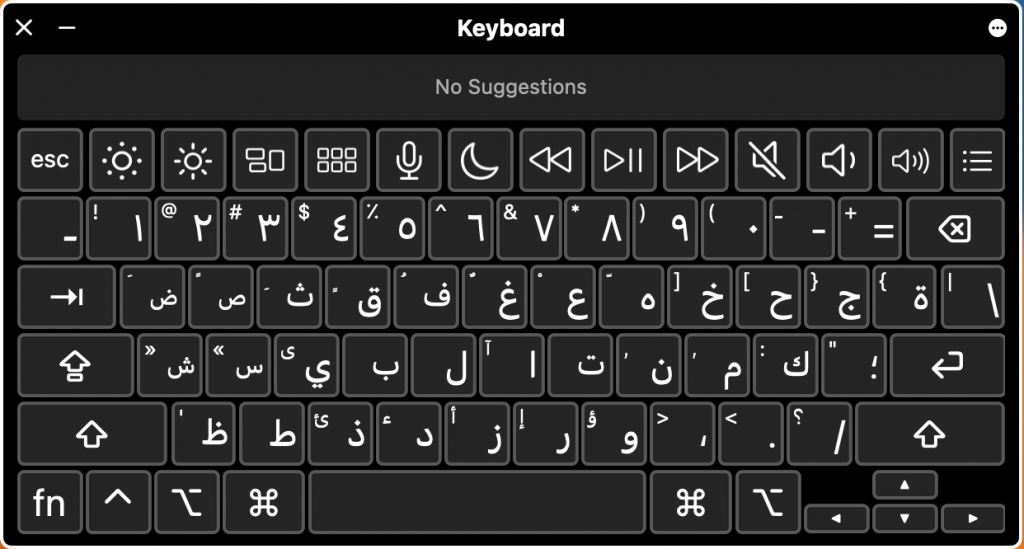
أرميني
Choose أرميني > Armenian – HM QWERTY
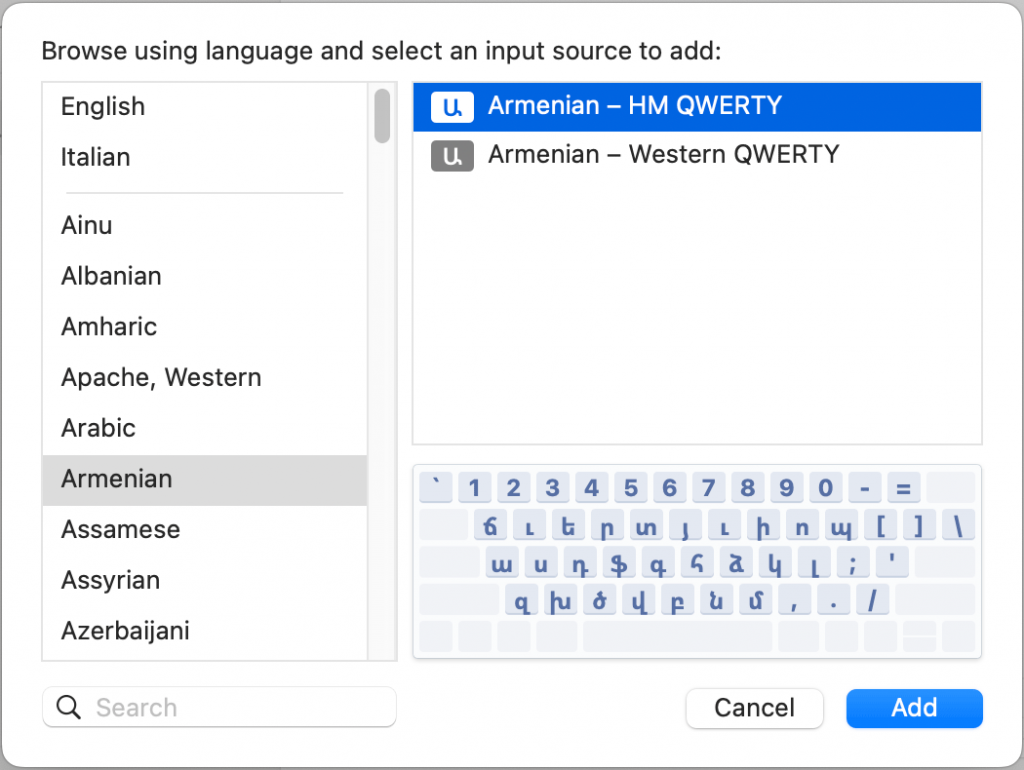
The أرميني keyboard will look like this:
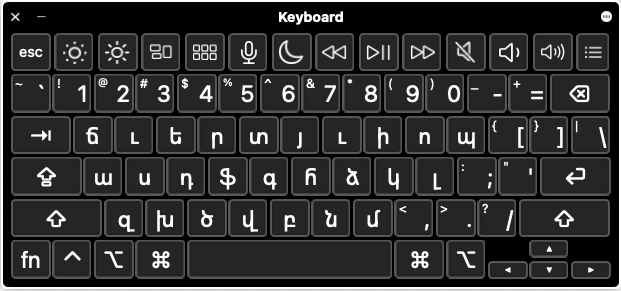
بنغالي
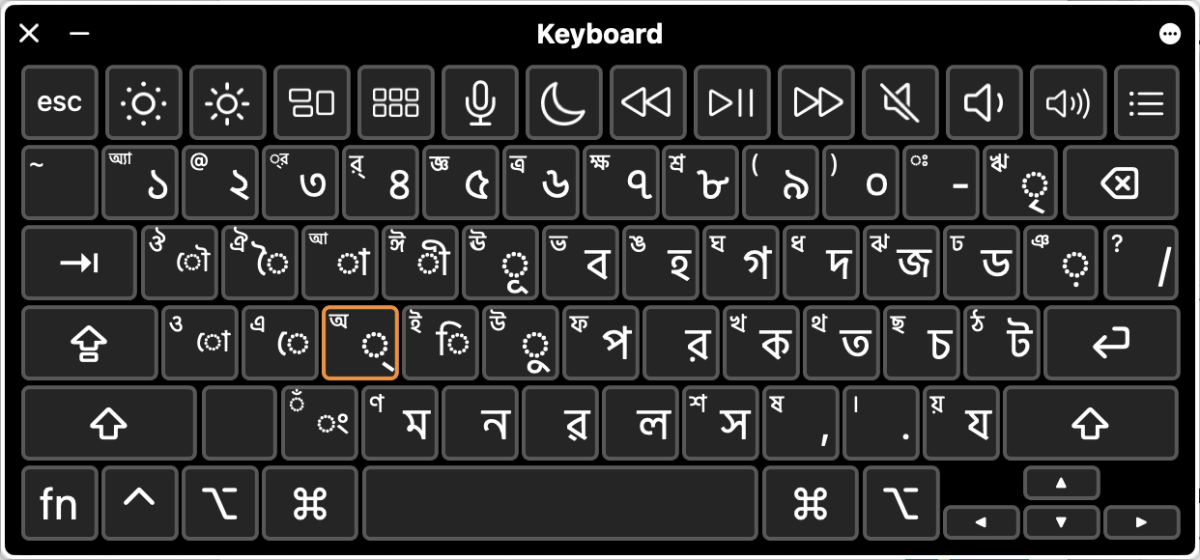
Choose Manipuri (Bangala) > Manipuri (Bengali) – Standard
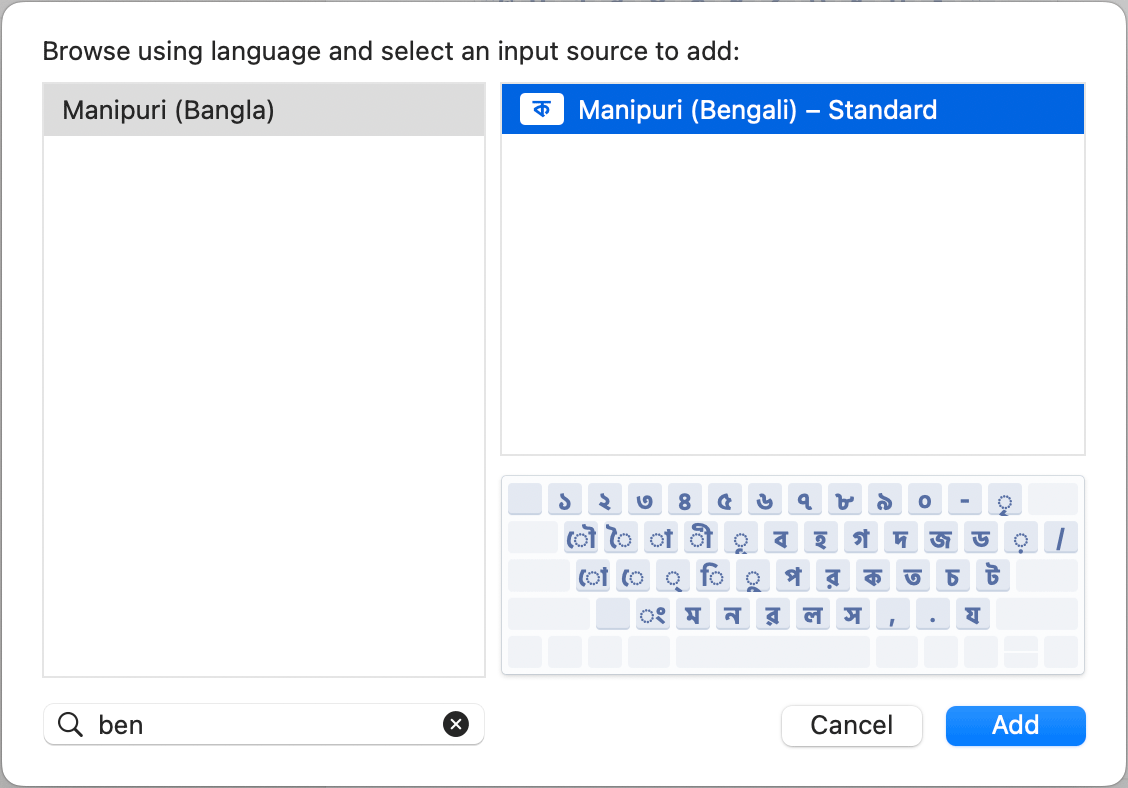
The بنغالي keyboard will look like this:
Chinese Simplified
Choose Chinese, Simplified > Pinyin Simplified
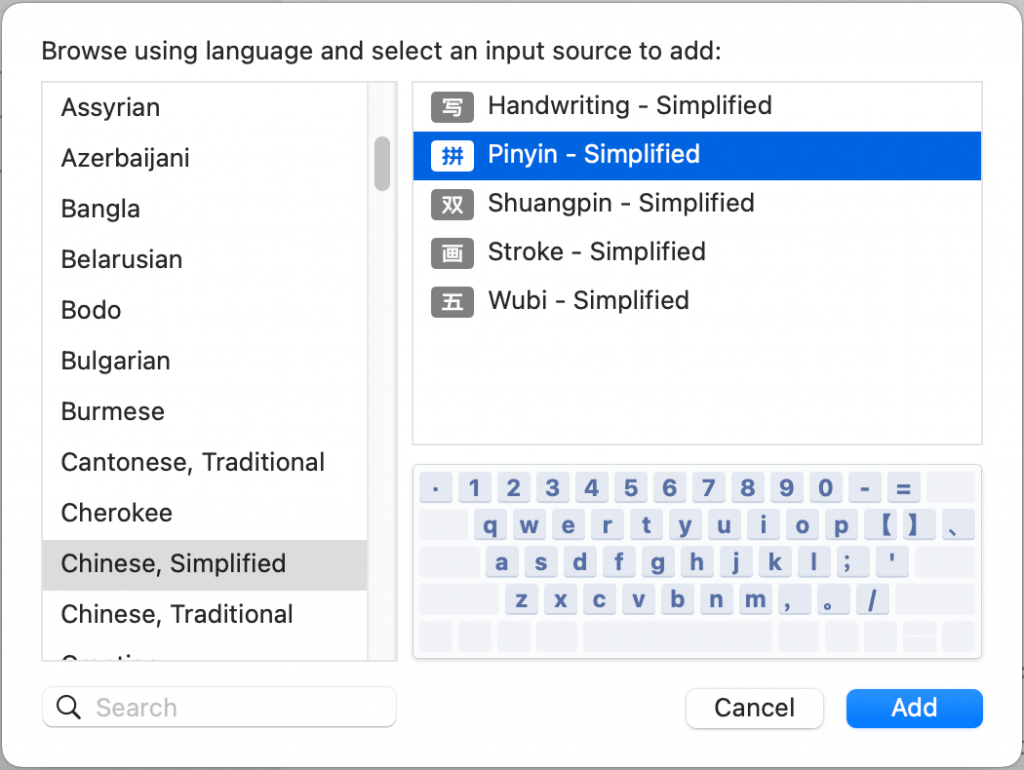
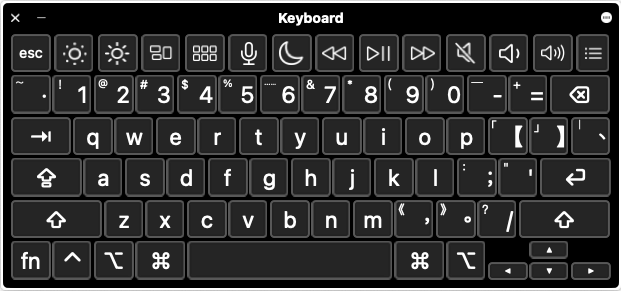
Note: There is no keyboard layout for the Chinese, Simplified – Pinyin Simplified keyboard layout because phrases are spelled out with letters from the English Alphabet.
How to Type in Chinese Simplified:
- Typing in Chinese Simplified begins with typing the pronunciation of the word (Pinyin) and then hitting the space bar to bring up a list of Chinese Simplified characters to choose from.
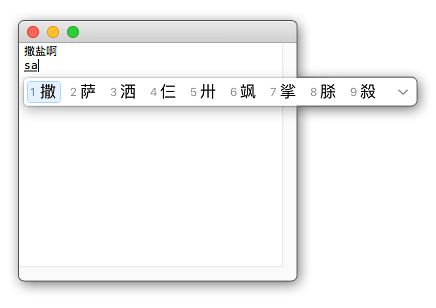
Important: If test takers use Pinyin* in the response (not Chinese characters), they will top out at the مبتدئ-متقدم level. To score at the Intermediate level or higher, test takers MUST show the ability to use characters.
*Pinyin is the Romanization of the Chinese characters based on their pronunciation. In Mandarin Chinese, the phrase “Pin Yin” literally translates into “spell sound”. In other words, spelling out Chinese phrases with letters from the English alphabet.
Chinese Traditional
Choose Chinese Traditional > Pinyin – Traditional
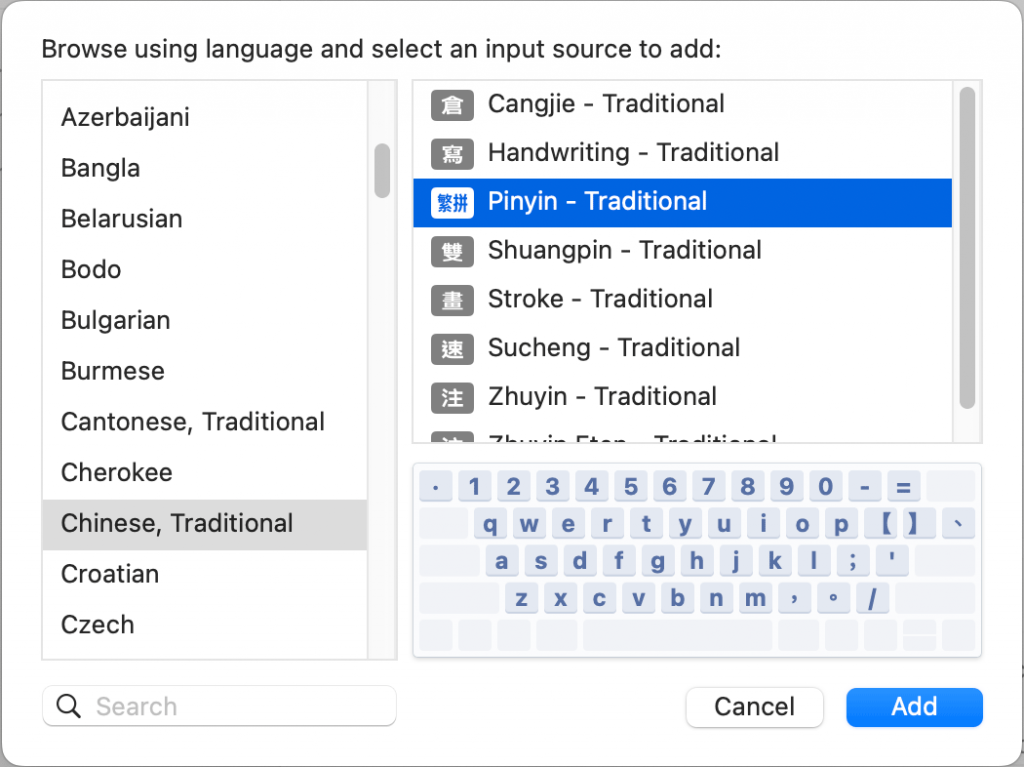
Note: There is no keyboard layout for the Chinese, Traditional – Pinyin Traditional keyboard layout because phrases are spelled out with letters from the English Alphabet.
Important: If test takers use Romaji* (not changing that to Hiragana, Katakana, or Kanji), they will top out at the مبتدئ-متقدم level. To score at the Intermediate level or higher, test takers MUST show the ability to use characters.
* Romaji is the Romanization of the Japanese characters based on their pronunciation. In Japanese, the phrase “Romaji” literally translates into “roman letters”. In other words, spelling out Japanese phrases with letters from the English alphabet.
يوناني
Choose يوناني > يوناني
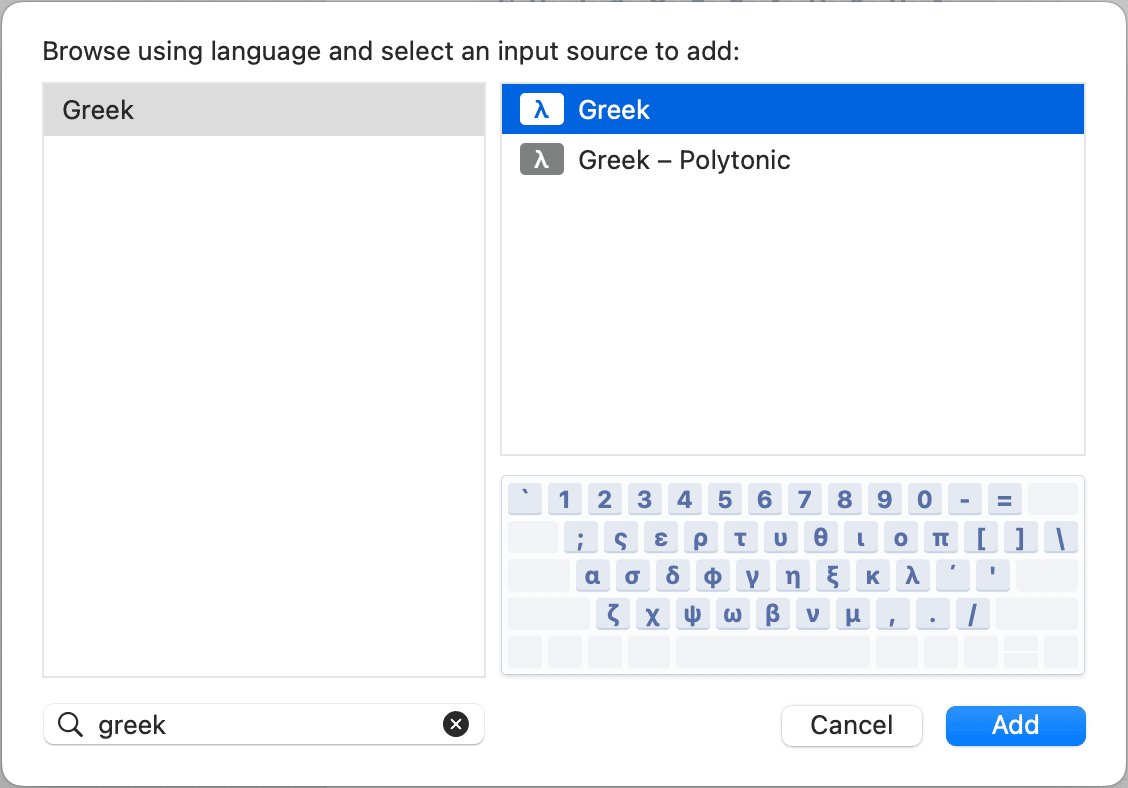
The يوناني keyboard will look like this:
عبري
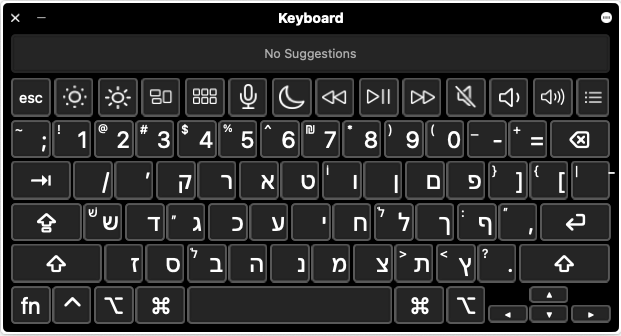
Choose عبري > عبري
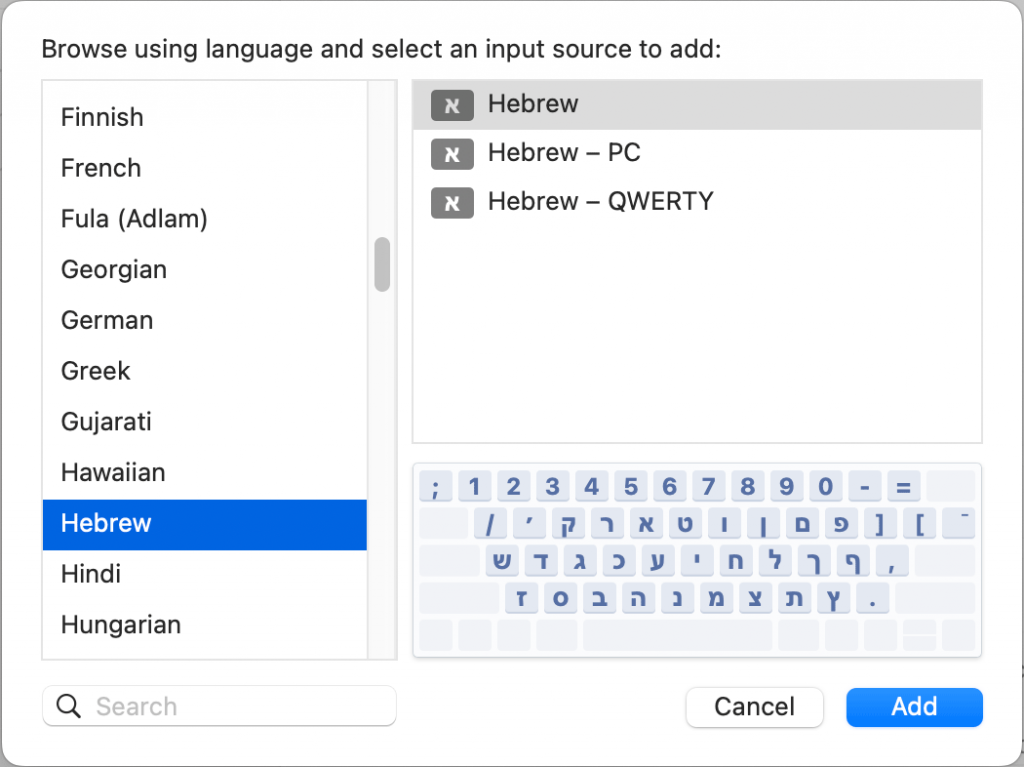
The عبري keyboard will look like this:
هندي
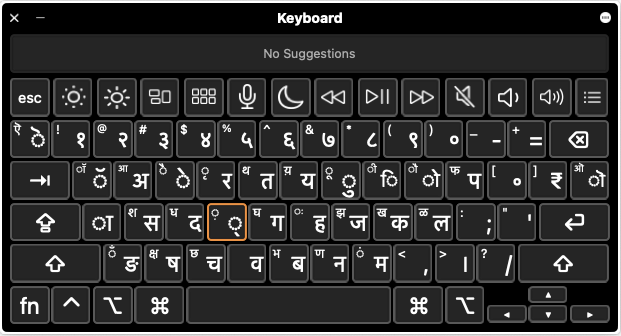
Choose هندي > Devanagari – QWERTY
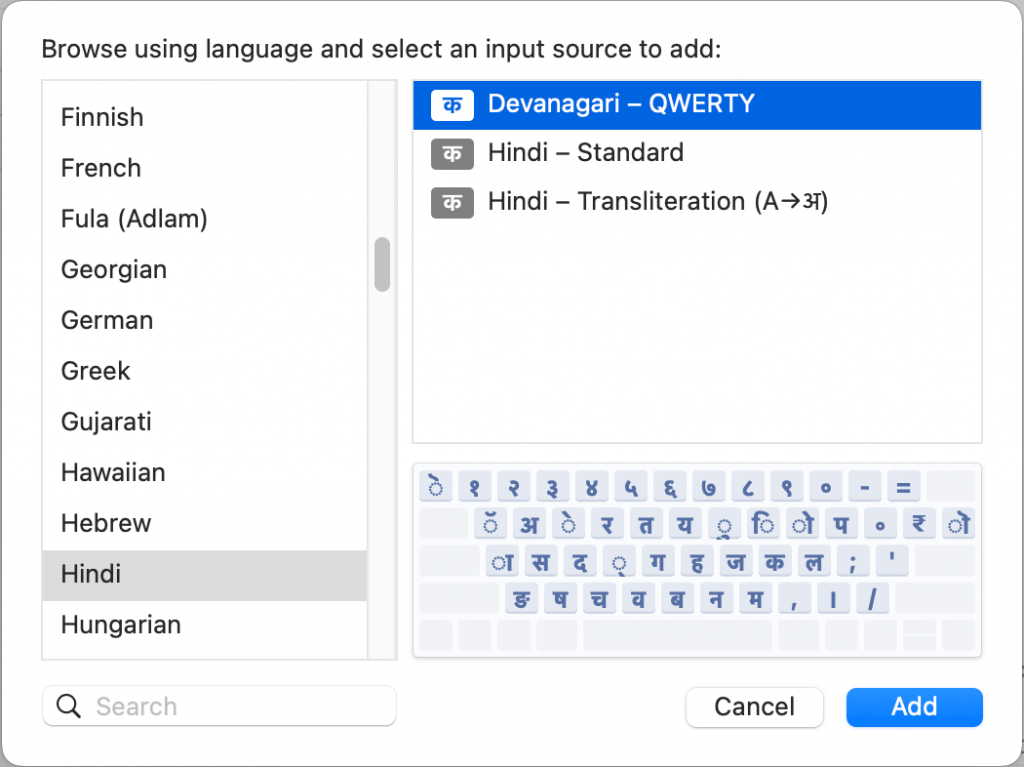
The هندي > Devanagari – QWERTY keyboard will look like this:
اليابانية
Choose اليابانية > Japanese – Romaji
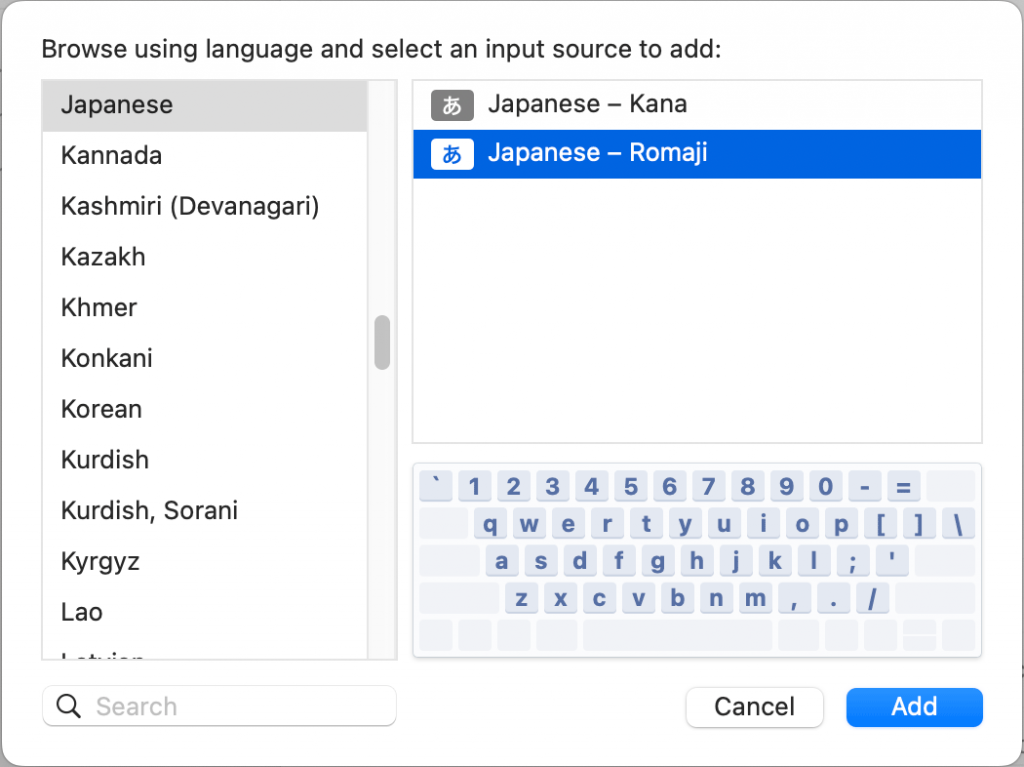
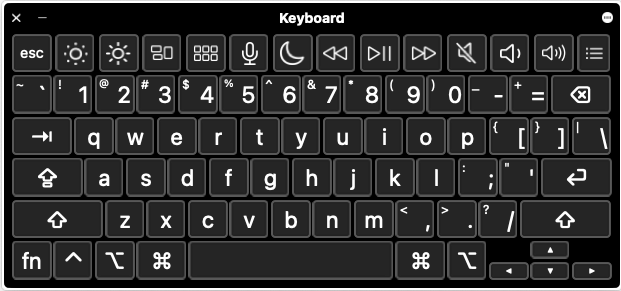
Note: There is no keyboard layout for the Japanese keyboard because phrases are spelled out with letters from the English Alphabet.
Important: If test takers use Romaji* (not changing that to Hiragana, Katakana, or Kanji), they will top out at the مبتدئ-متقدم level. To score at the Intermediate level or higher, test takers MUST show the ability to use characters.
* Romaji is the Romanization of the Japanese characters based on their pronunciation. In Japanese, the phrase “Romaji” literally translates into “roman letters”. In other words, spelling out Japanese phrases with letters from the English alphabet.
Type in Japanese:
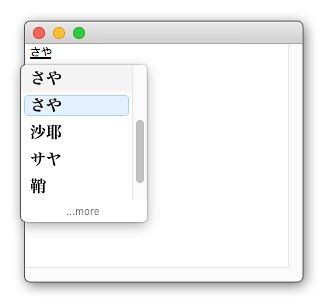
- Typing in Japanese begins with typing the pronunciation of the word with letters from the English alphabet, and then hitting space bar to bring up a list of Japanese characters to choose from.
- Note: You may need to hit the SHIFT button.
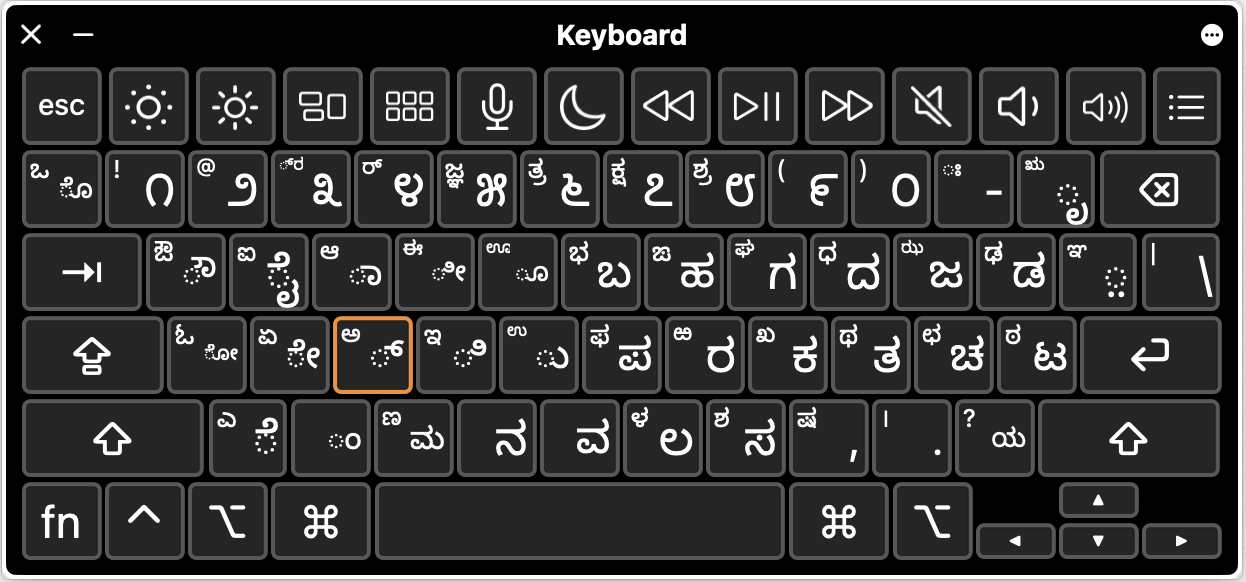
كانادا
Choose كانادا > Kannada – Standard
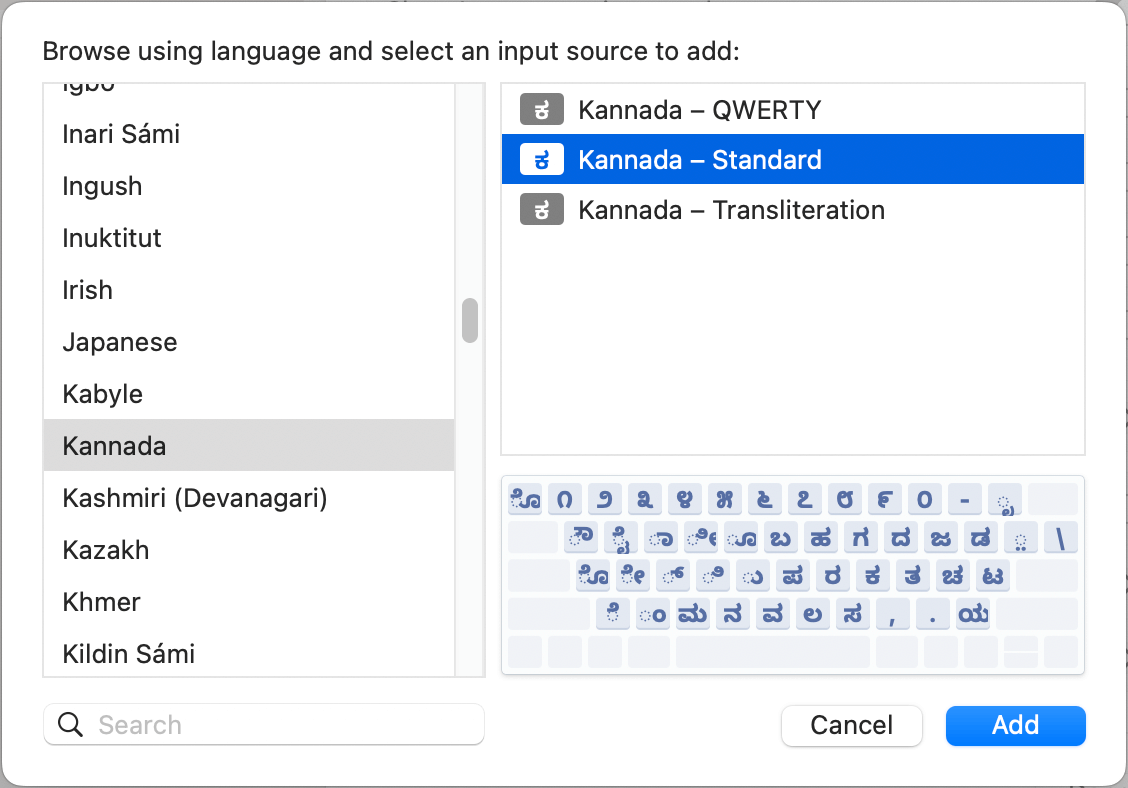
The كانادا keyboard will look like this:
خمير
Choose خمير > خمير

The خمير keyboard will look like this:

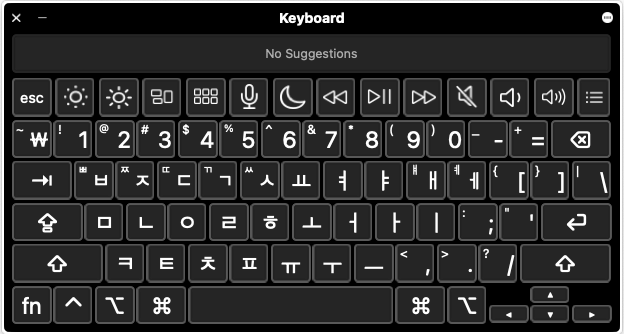
كوري
Choose كوري > 2-Set Korean
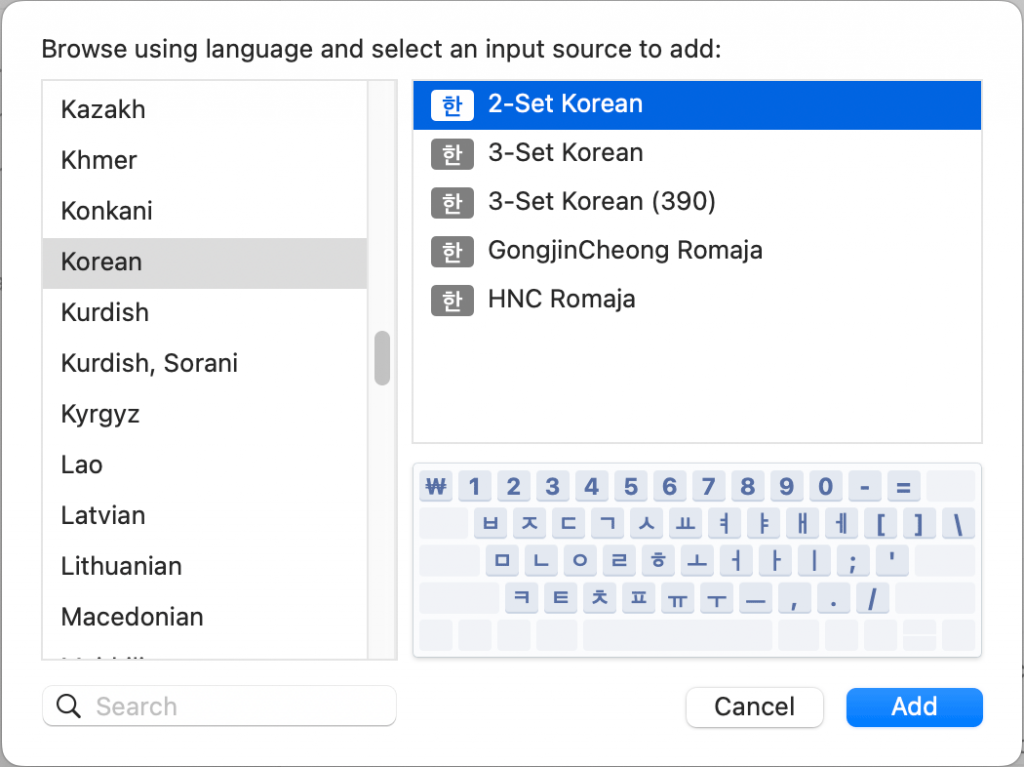
The كوري keyboard will look like this:
ماراثي
Choose ماراثي > Marathi – Standard
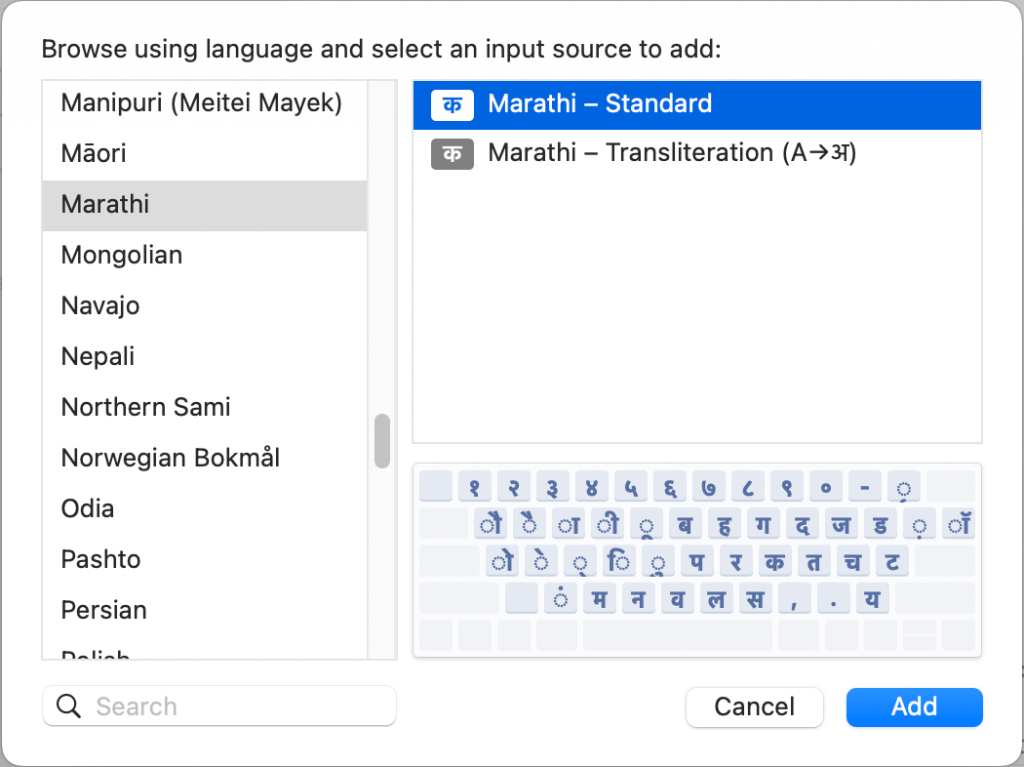
The ماراثي keyboard will look like this:
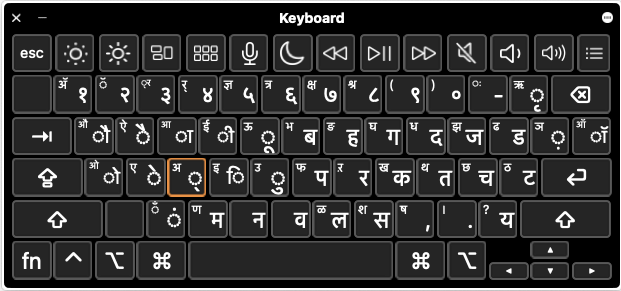
نيبالي
Choose نيبالي > Nepali – Standard (India)

The نيبالي keyboard will look like this:

بشتو
Choose بشتو > Afghan Pashto

The بشتو keyboard will look like this:

الفارسية الفارسية
Choose Persian > Persian – Standard

The Persian keyboard will look like this:

بنجابي
Choose بنجابي > Gurmukhi – Standard

The بنجابي keyboard will look like this:

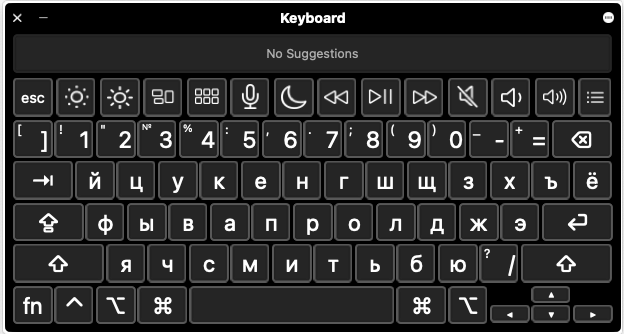
روسي
Choose روسي > روسي
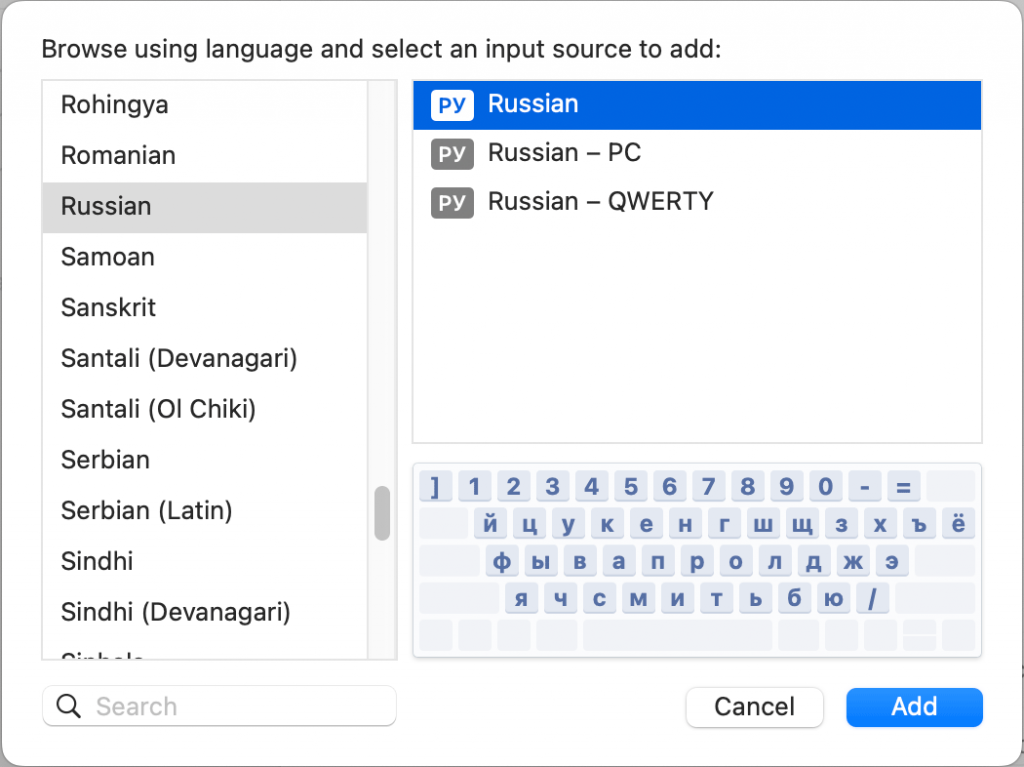
The روسي keyboard will look like this:
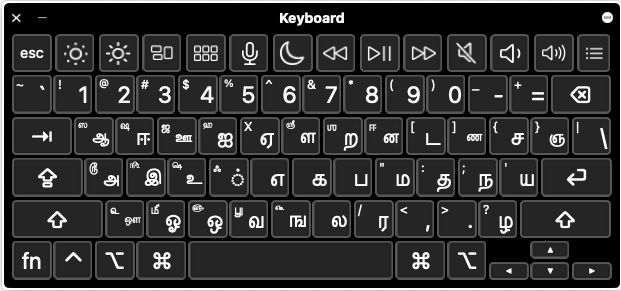
تاميل
Choose تاميل > Tamil 99
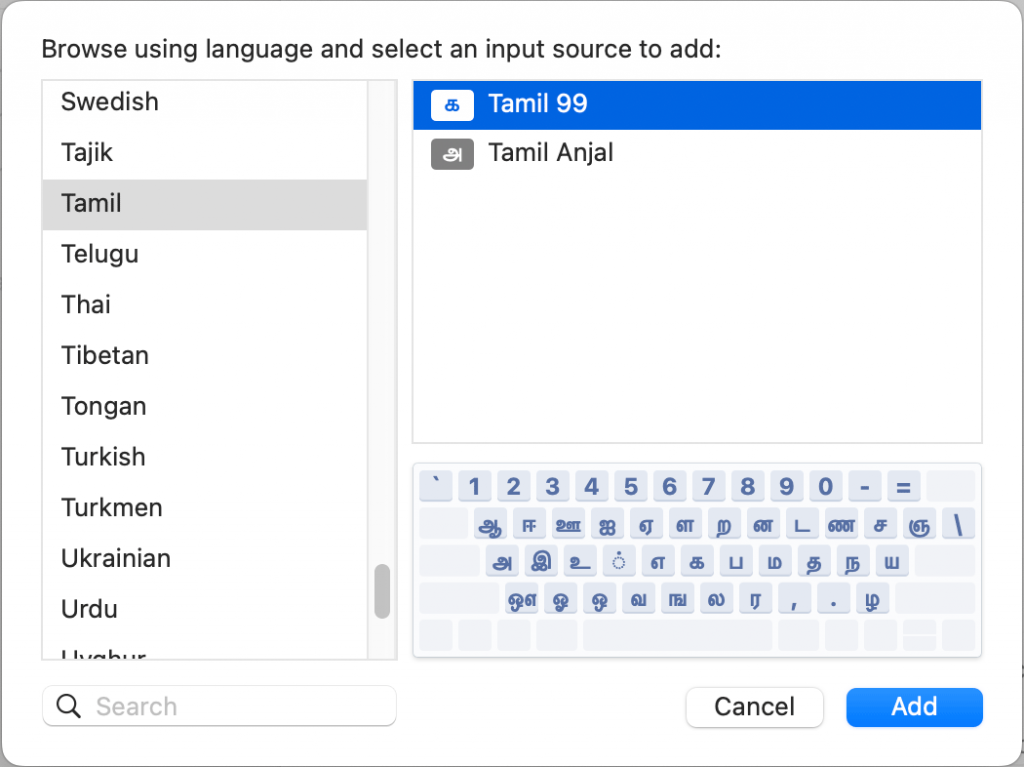
The تاميل keyboard will look like this:
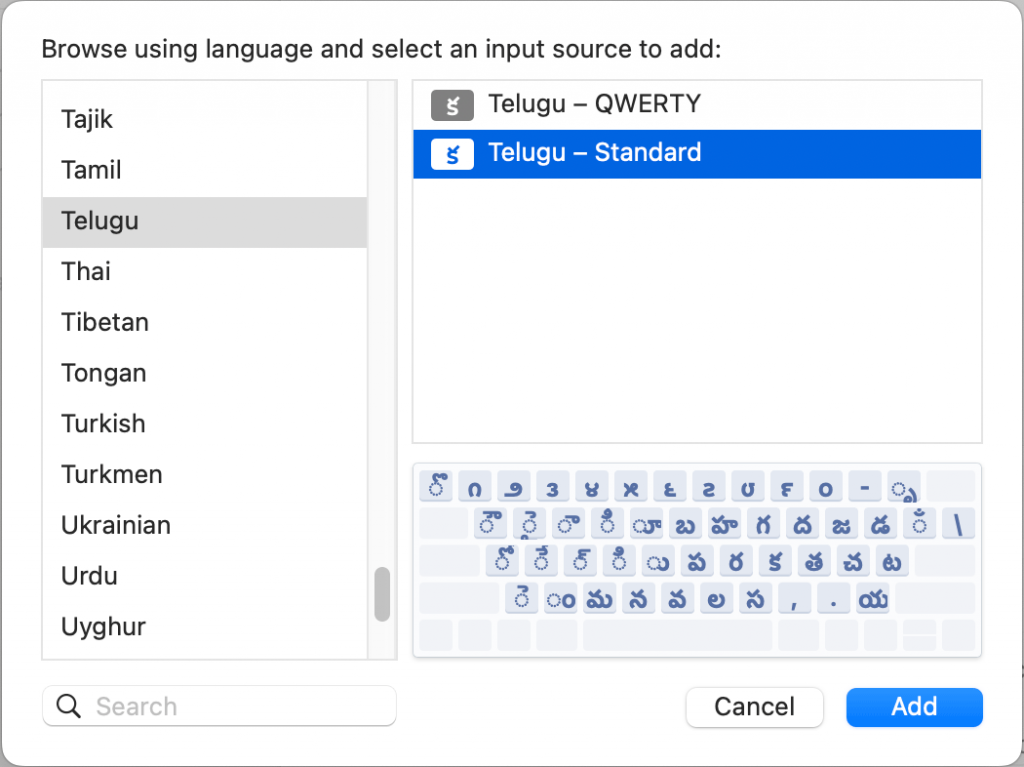
تيلوغو
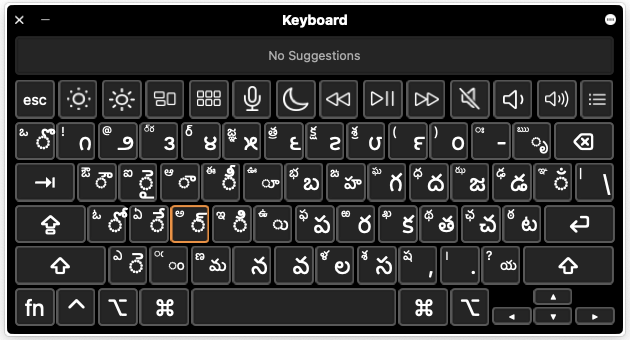
Choose تيلوغو > Telugu – Standard
The تيلوغو keyboard will look like this:
تايلاندي
Choose Thai > Thai

The تايلاندي keyboard will look like this:

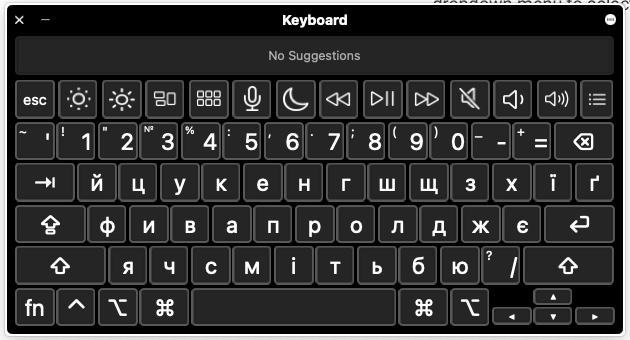
أوكراني
Choose أوكراني > Ukrainian – Legacy
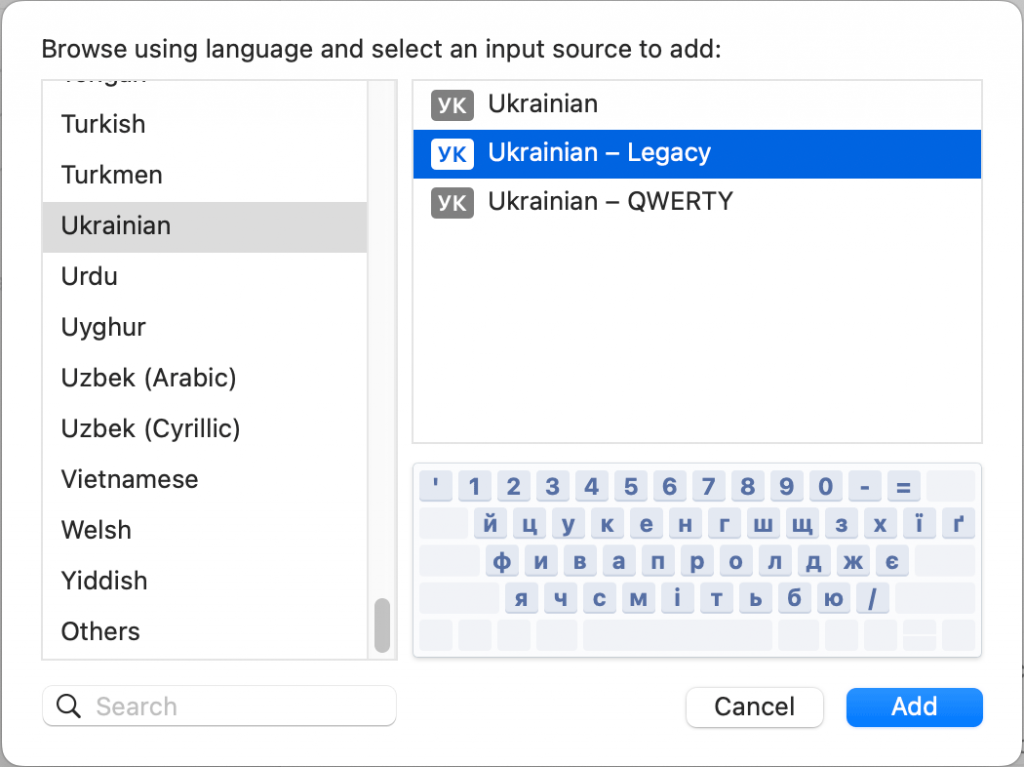
The أوكراني keyboard will look like this:
أردو
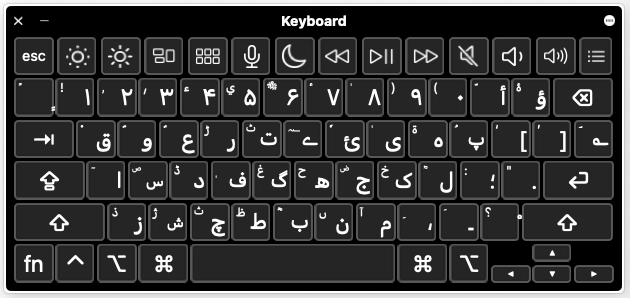
Choose أردو > أردو
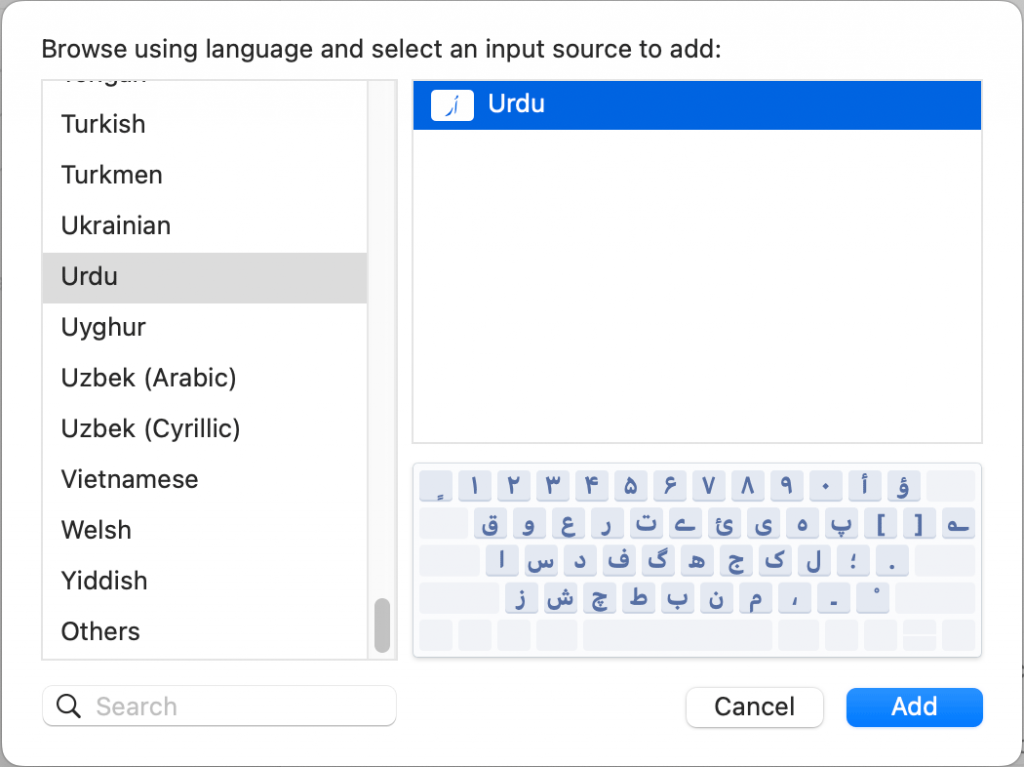
The أردو keyboard will look like this:
فيتنامي
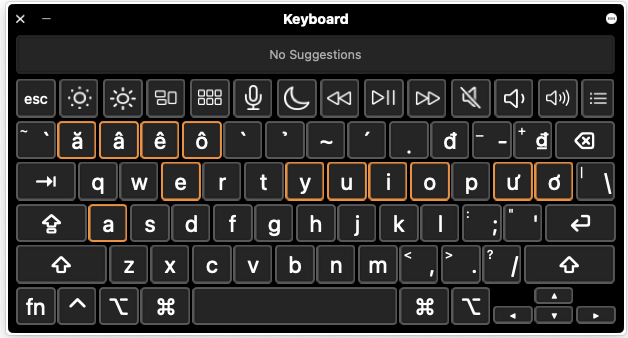
Choose فيتنامي > فيتنامي
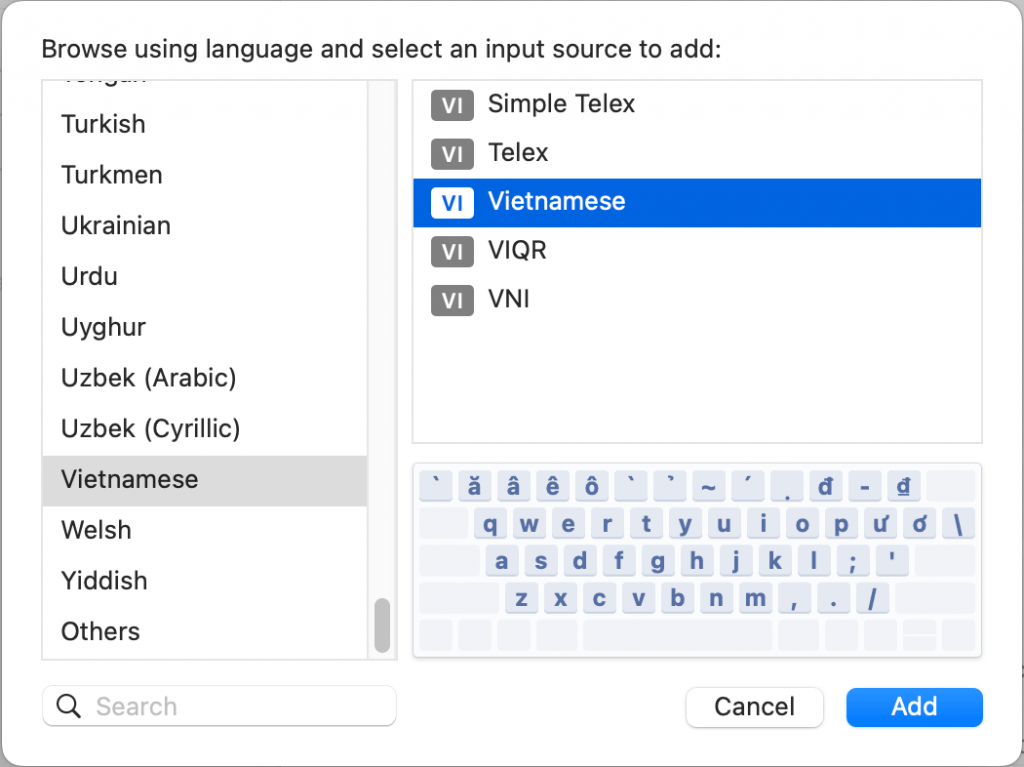
The فيتنامي keyboard will look like this: