
This guide explains how to set up a testing session with AvantProctor.
Login to Roster Test Takers
Avant Assessment will send you a Set-Up Form with test codes and passwords to access Results Report for each testing group. Follow the instructions below to begin:
- Go to https://app.avantassessment.com/login
- Enter the Test Code provided by Avant Assessment.
- Click Log In.
- Enter the Password provided by Avant Assessment.
- Click Log In.
Roster Test Takers
Use the “Test Controls” section to roster test takers.
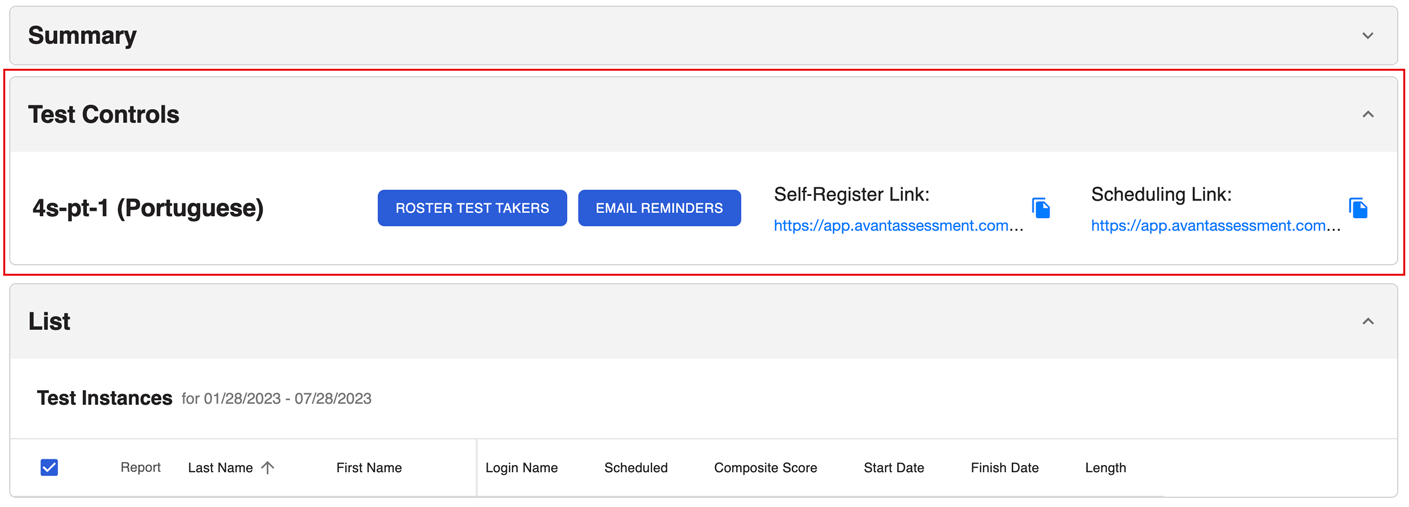
Note: PLACE and SHL assessments currently do not have Roster Test Takers and Email Reminders buttons.
Option 1: Self-Register Link
- Copy the “Self-Register Link”.
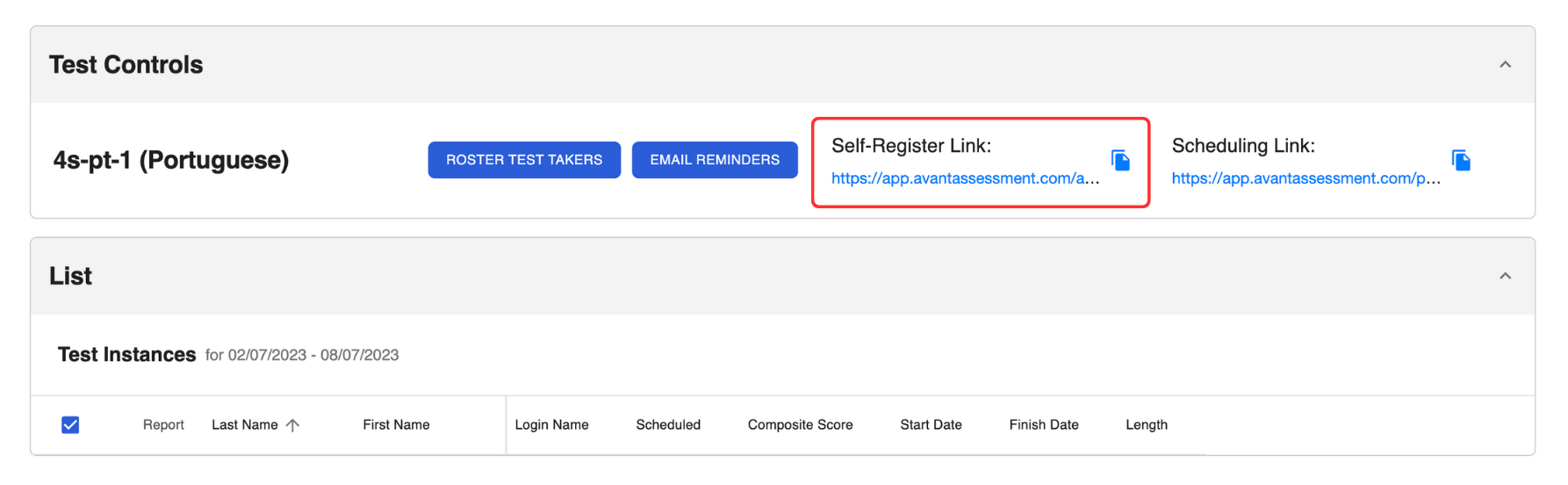
2. Email the link to your test takers.
The Self-Register Link lets test takers register for their test. After the registration:
- Test takers will receive an automatic email with the Scheduling Link and instructions.
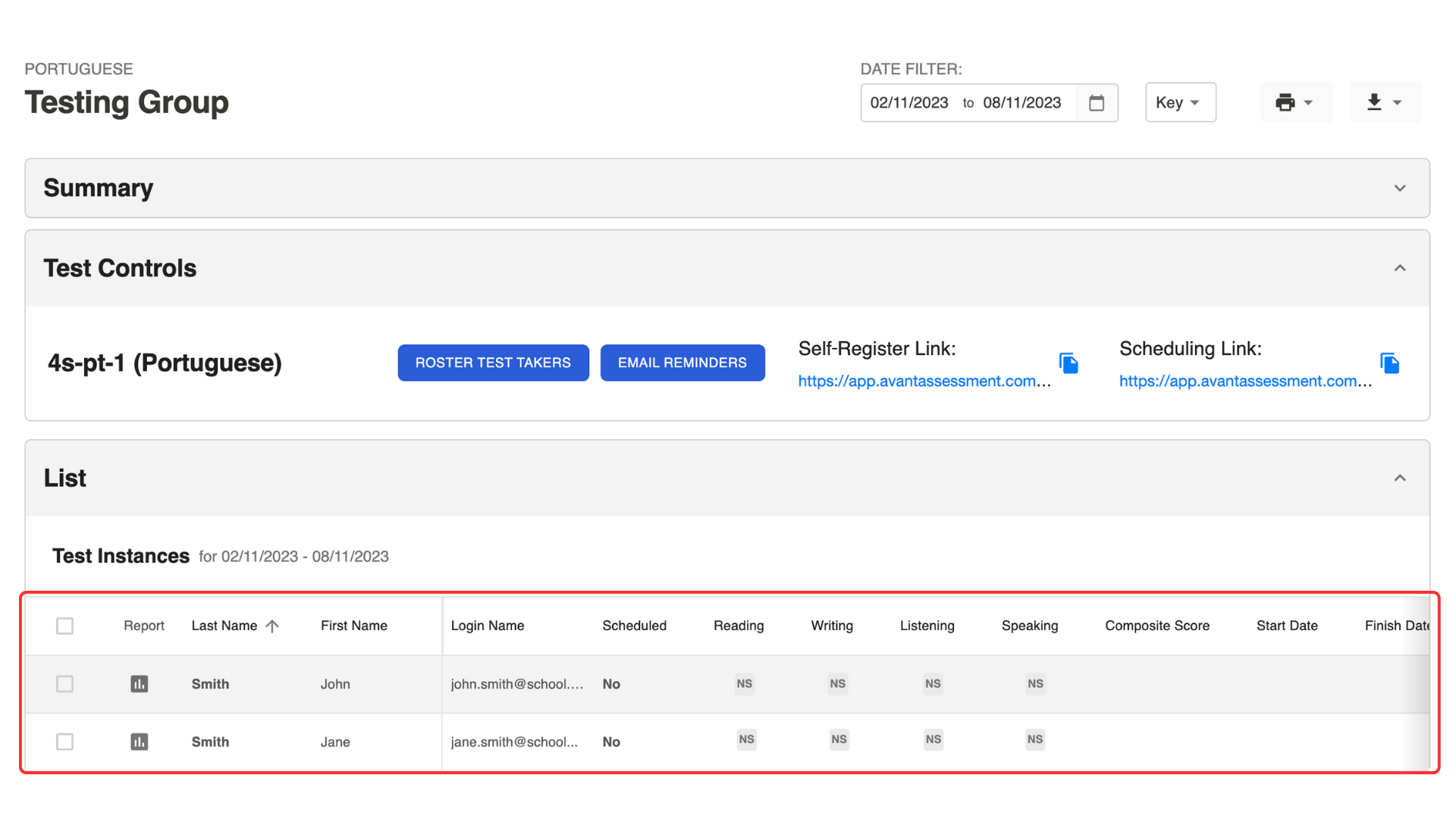
- Test takers names will appear in the Results Report.
Option 2: Roster Test Takers One-By-One
This option is available only for STAMP assessments.
- Click the Roster Test Takers button to open the pop-up menu.
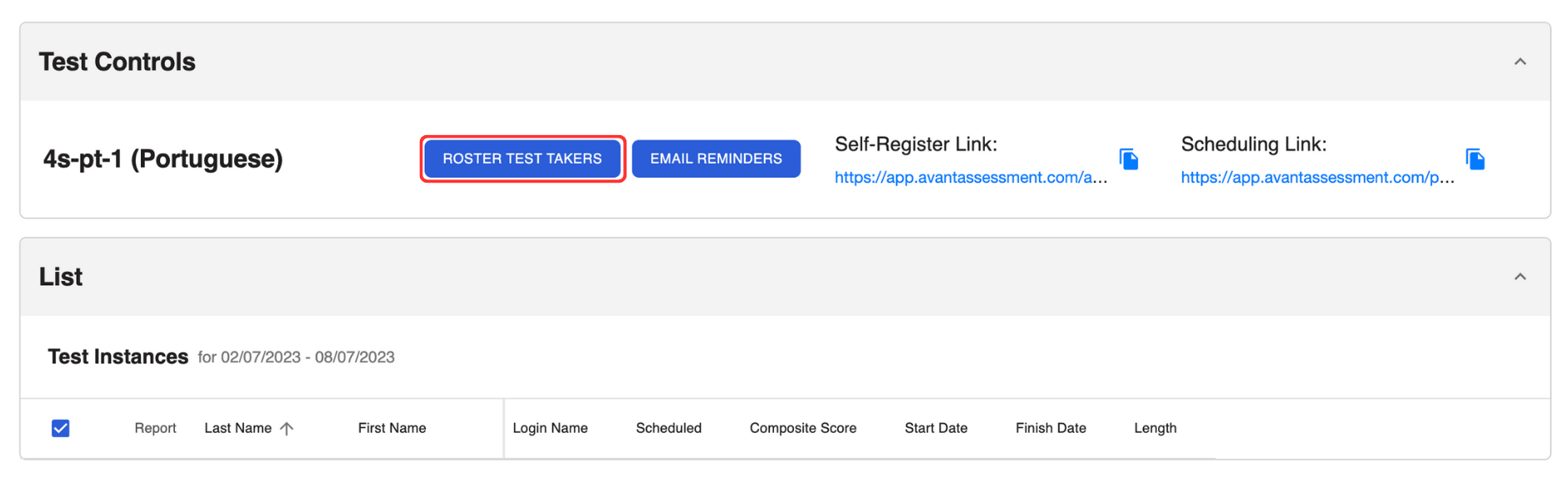
2. For each test taker enter:
- First Name (exact name on photo ID)
- Last Name (exact name on photo ID)
- Login Name (email address). Note: This field is case-sensitive
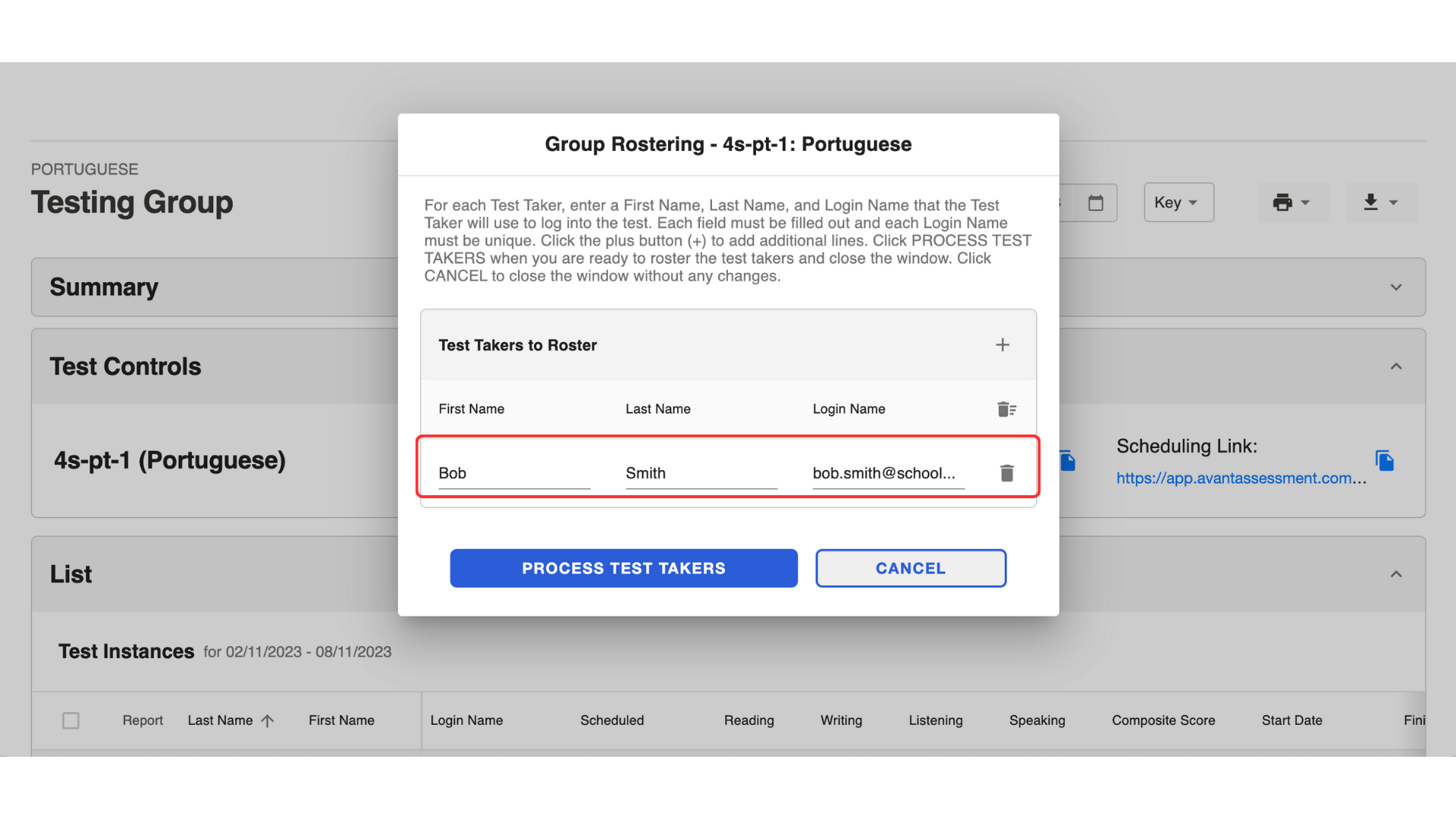
3. Click the Process Test Takers button.
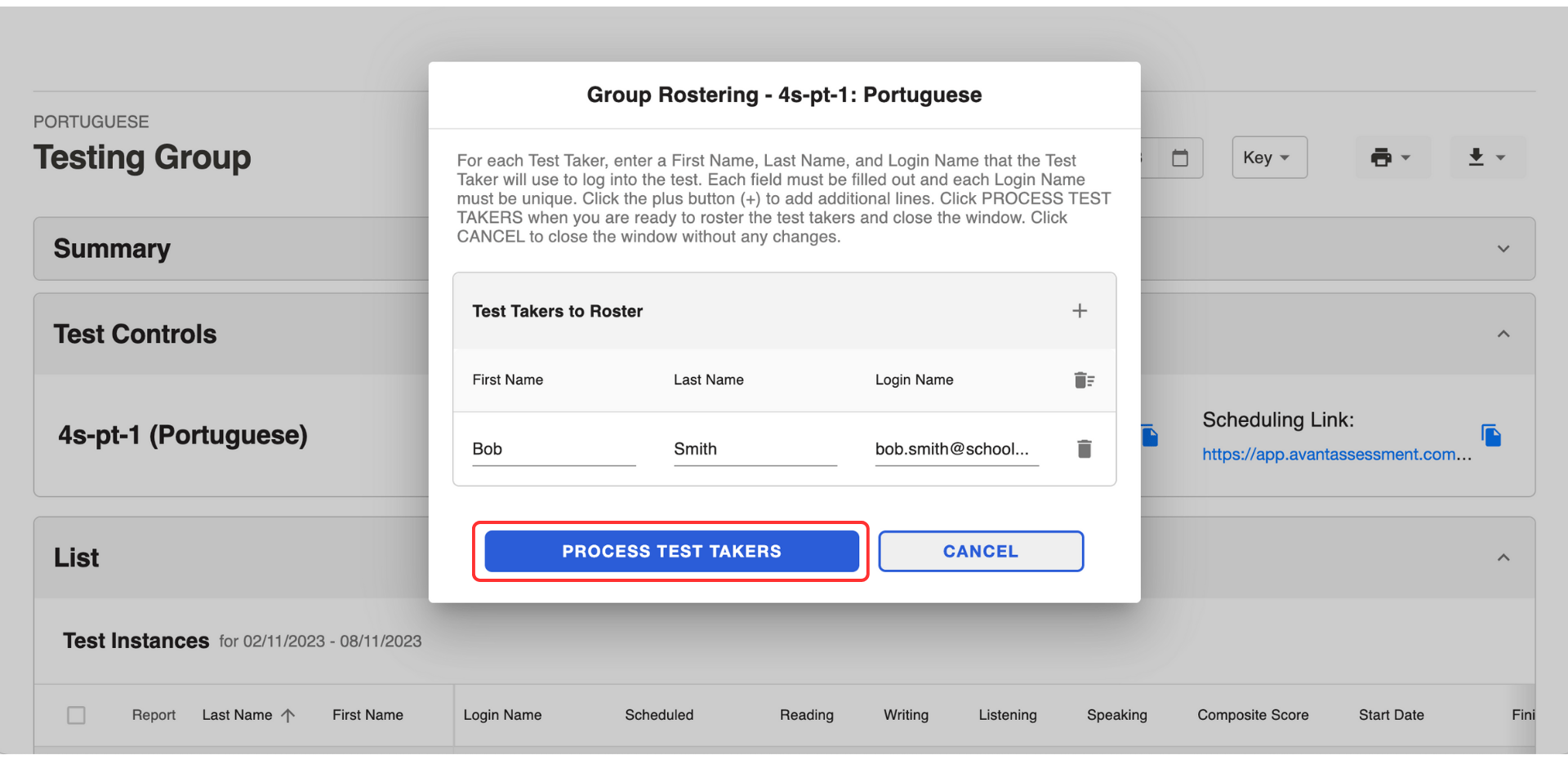
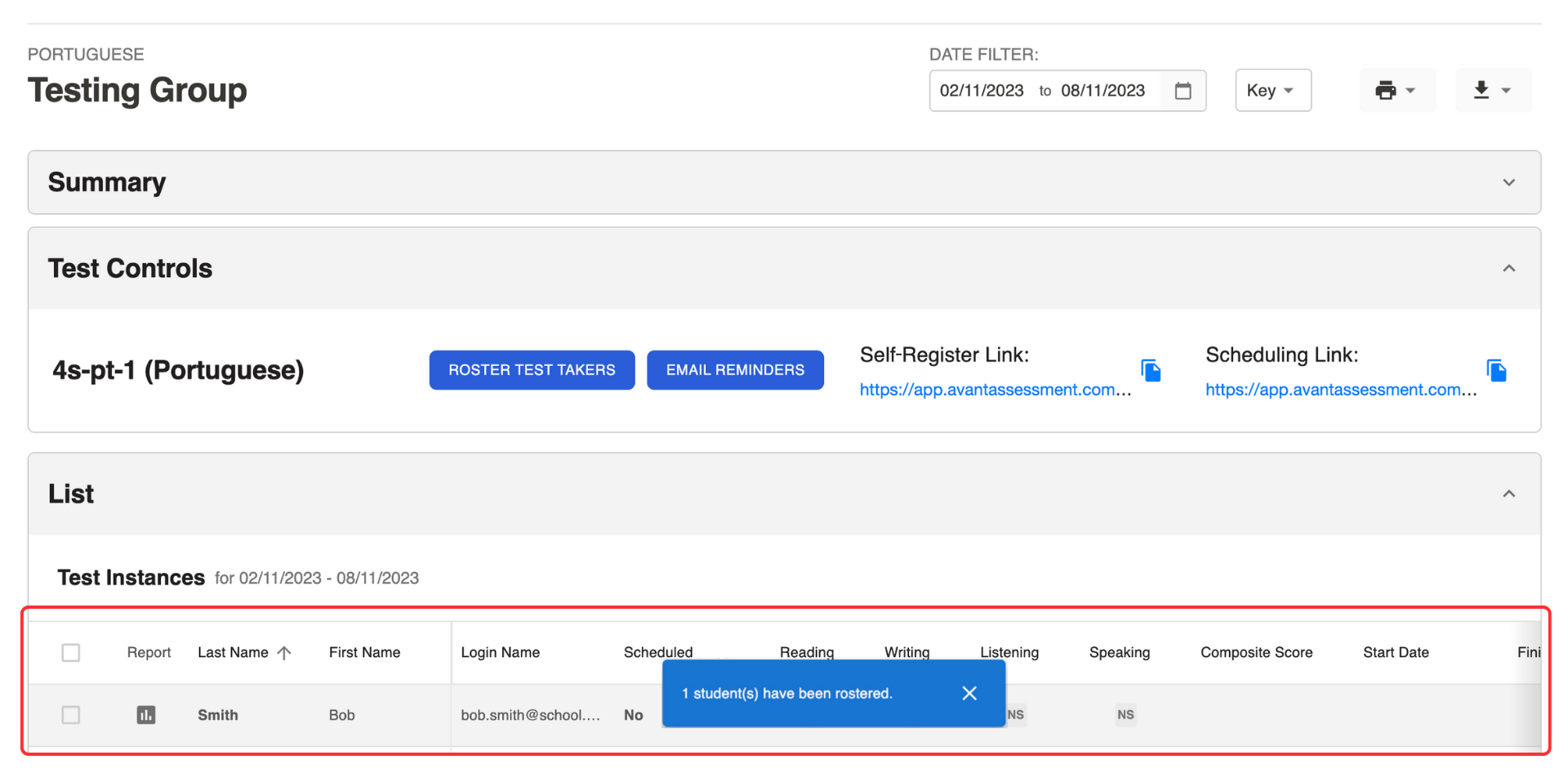
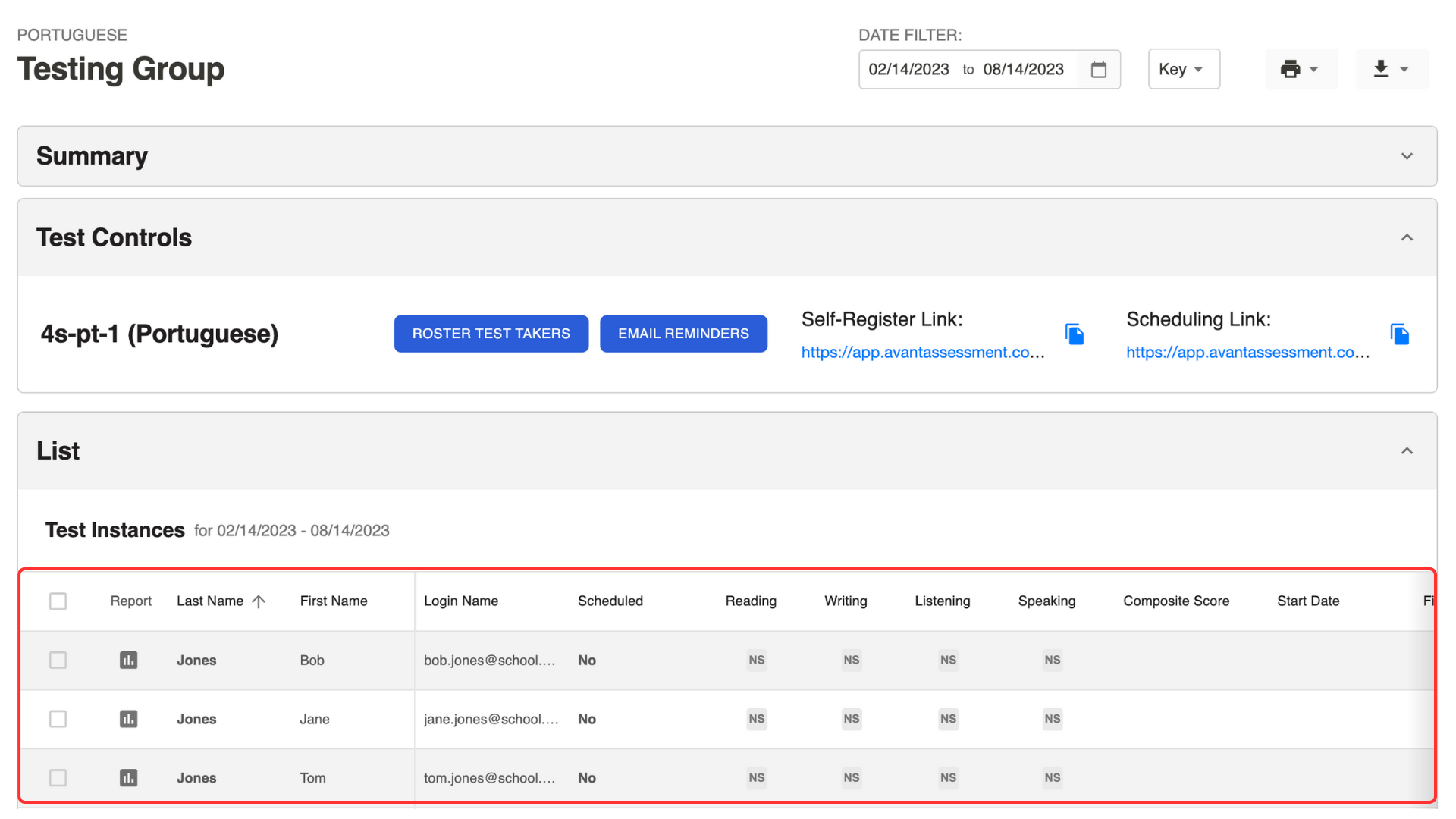
A test taker’s information will appear in the list below.
Option 3: Roster Test Takers in Bulk
This option is only for STAMP assessments.
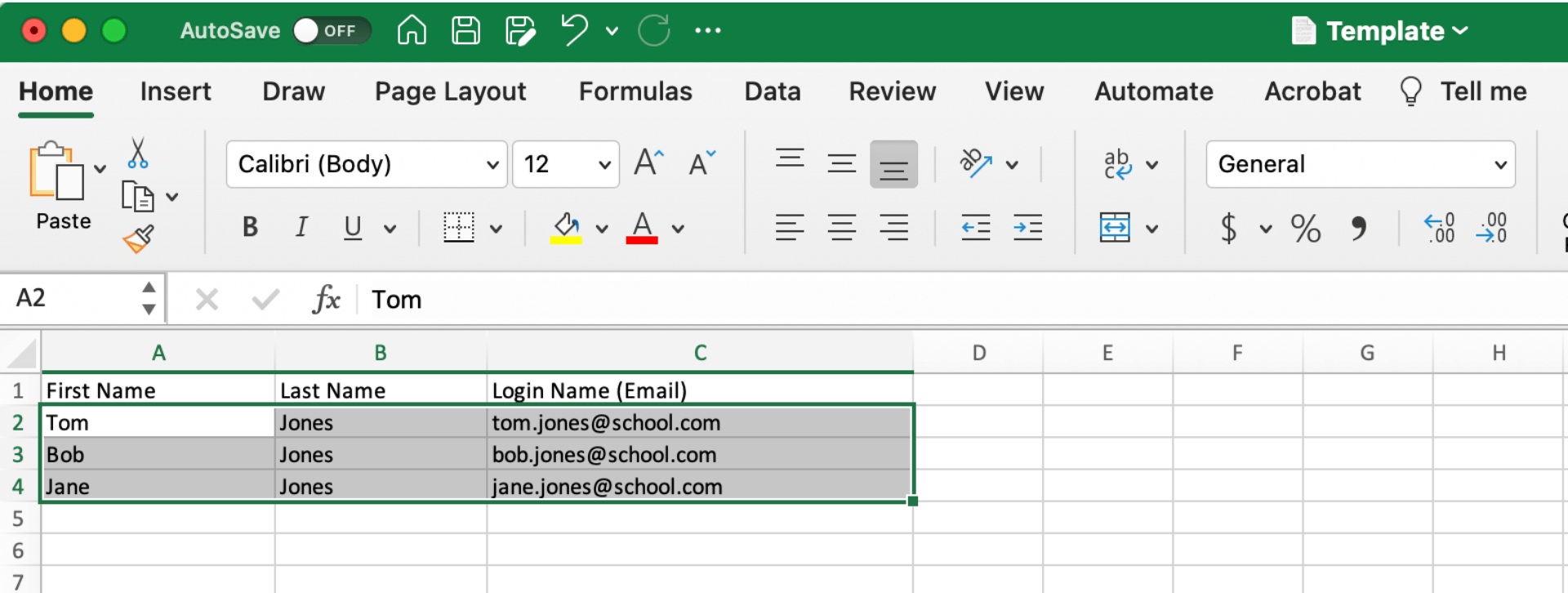
- Download this Spreadsheet Template.
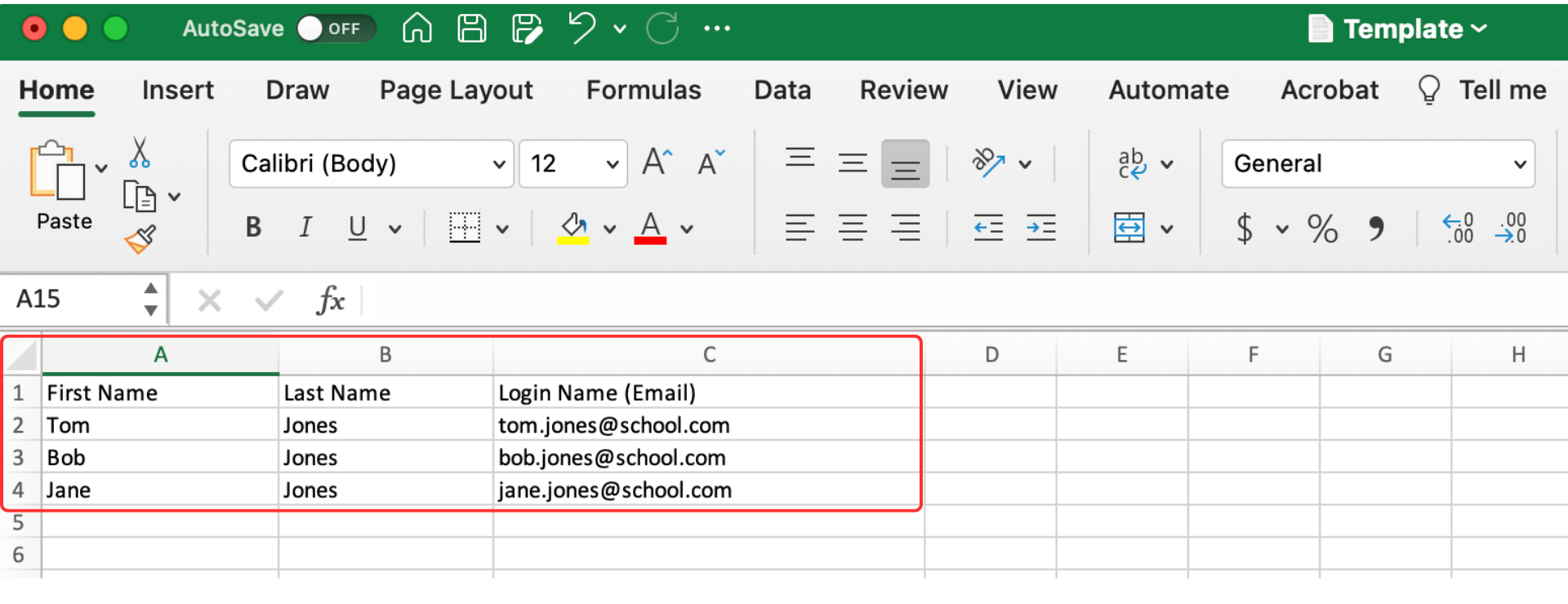
- Enter the following in the Spreadsheet:
- First Name (exact name on photo ID).
- Last Name (exact name on photo ID).
- Login Name (email address). Note: This field is case-sensitive.
3. Click Roster Test Takers to open a pop-up menu.
4. Copy and paste the list from the Spreadsheet into the pop-up menu.
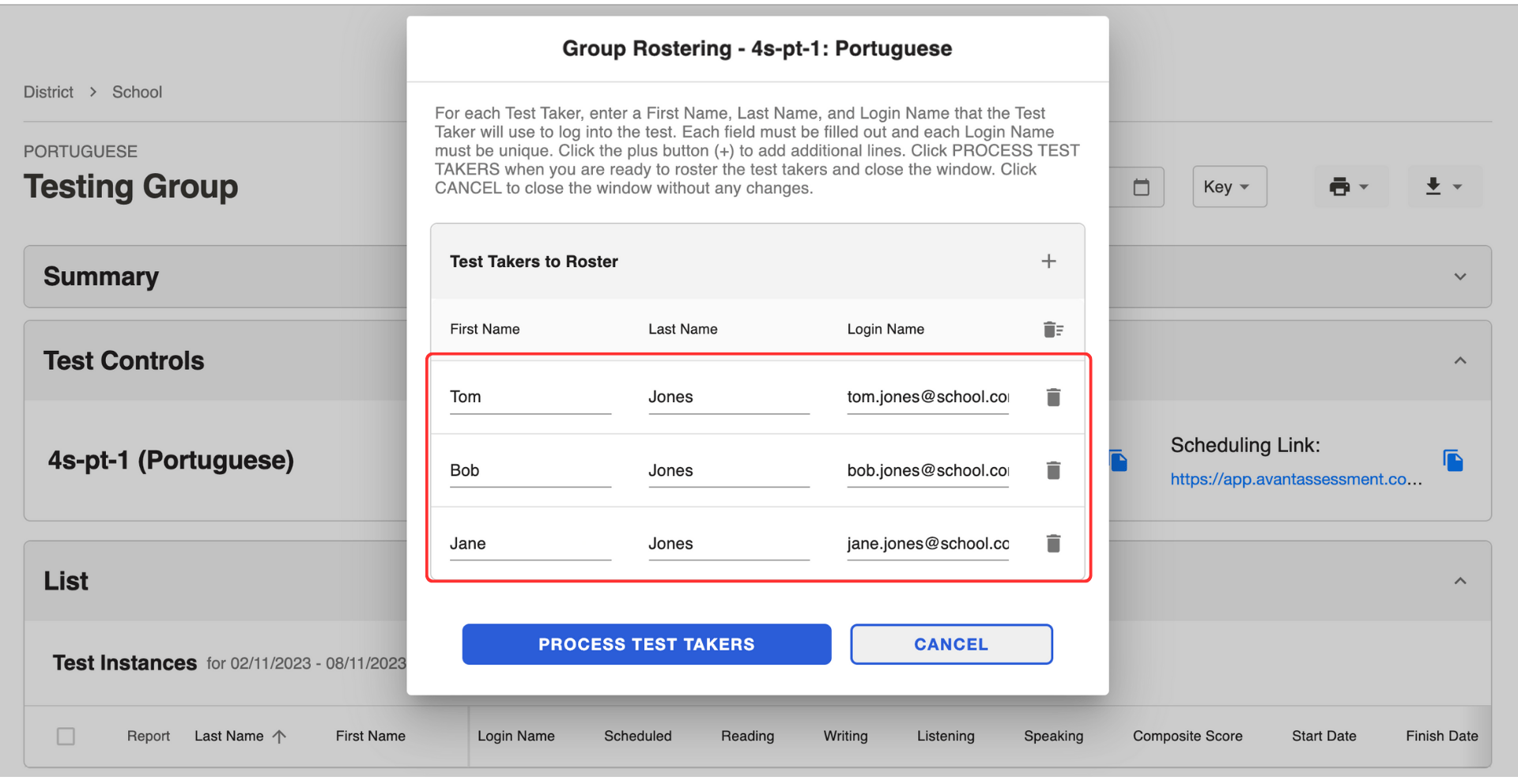
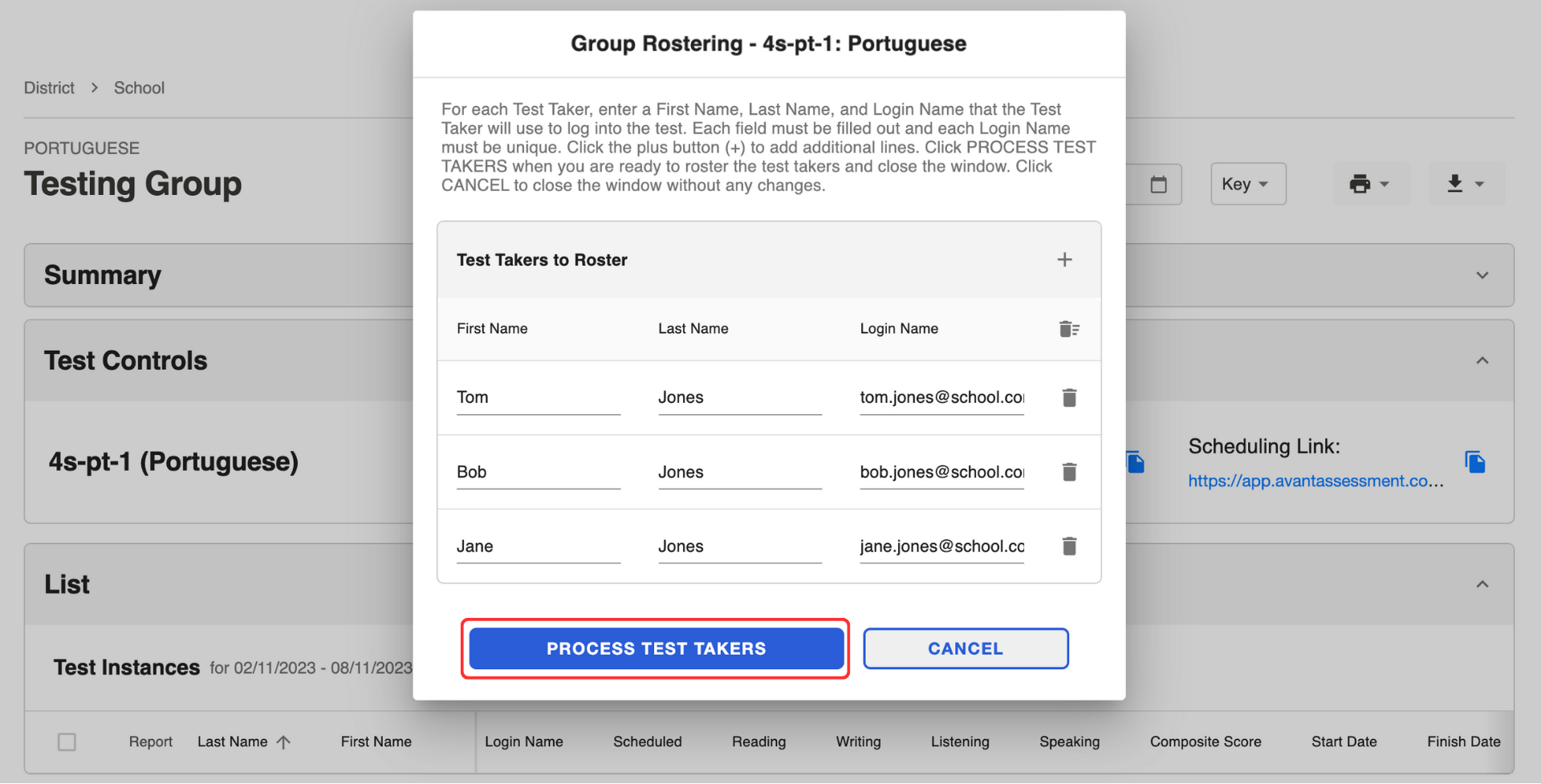
5. Click the Process Test Takers button.
Test takers’ information will appear in the list below.
Send Scheduling Link
Self-registered test takers will receive a scheduling link automatically.
If you used the “Roster Test Takers” button, you have to send a scheduling link using the “Email Reminders” button:
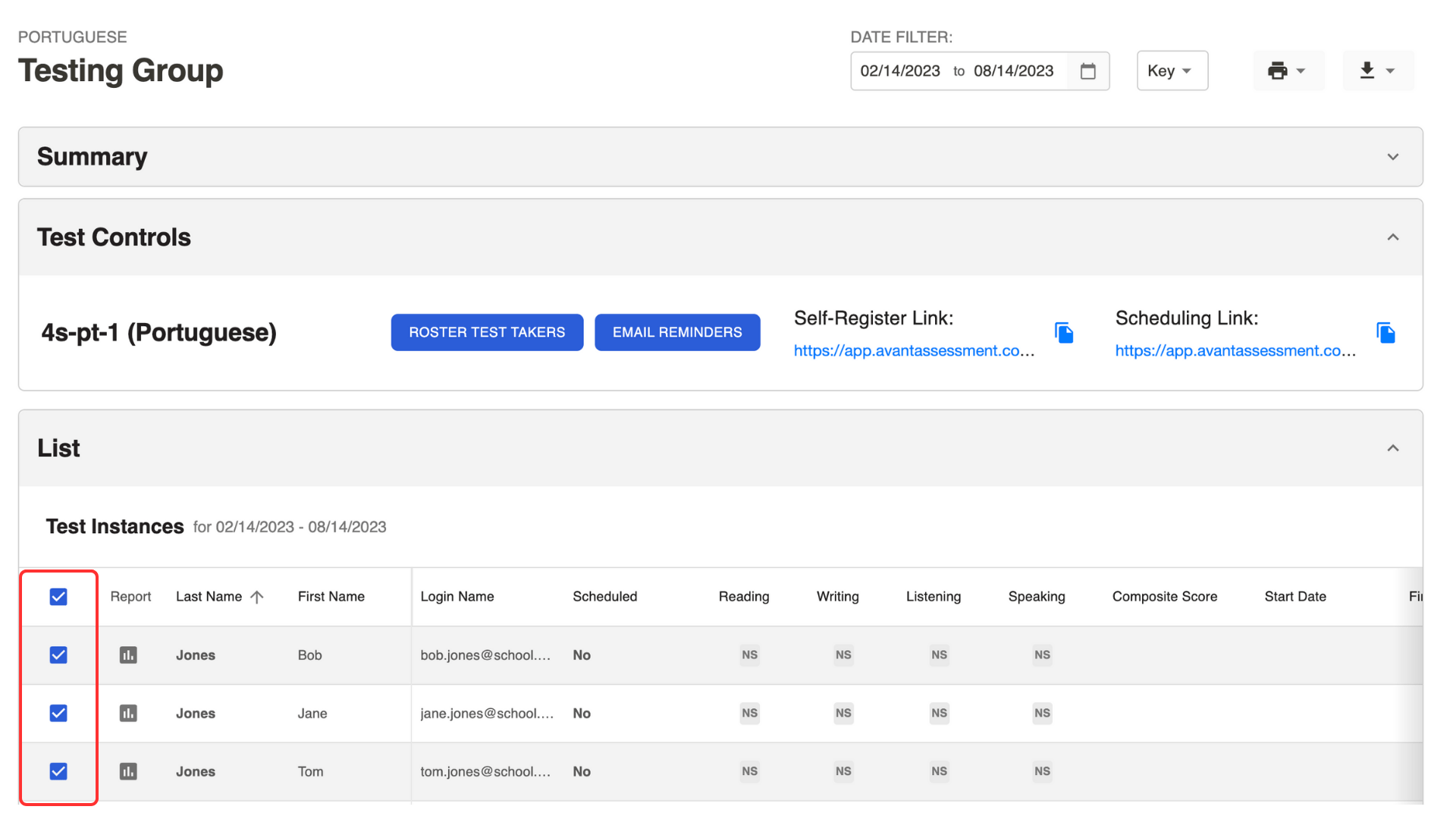
- Select test takers from the list.
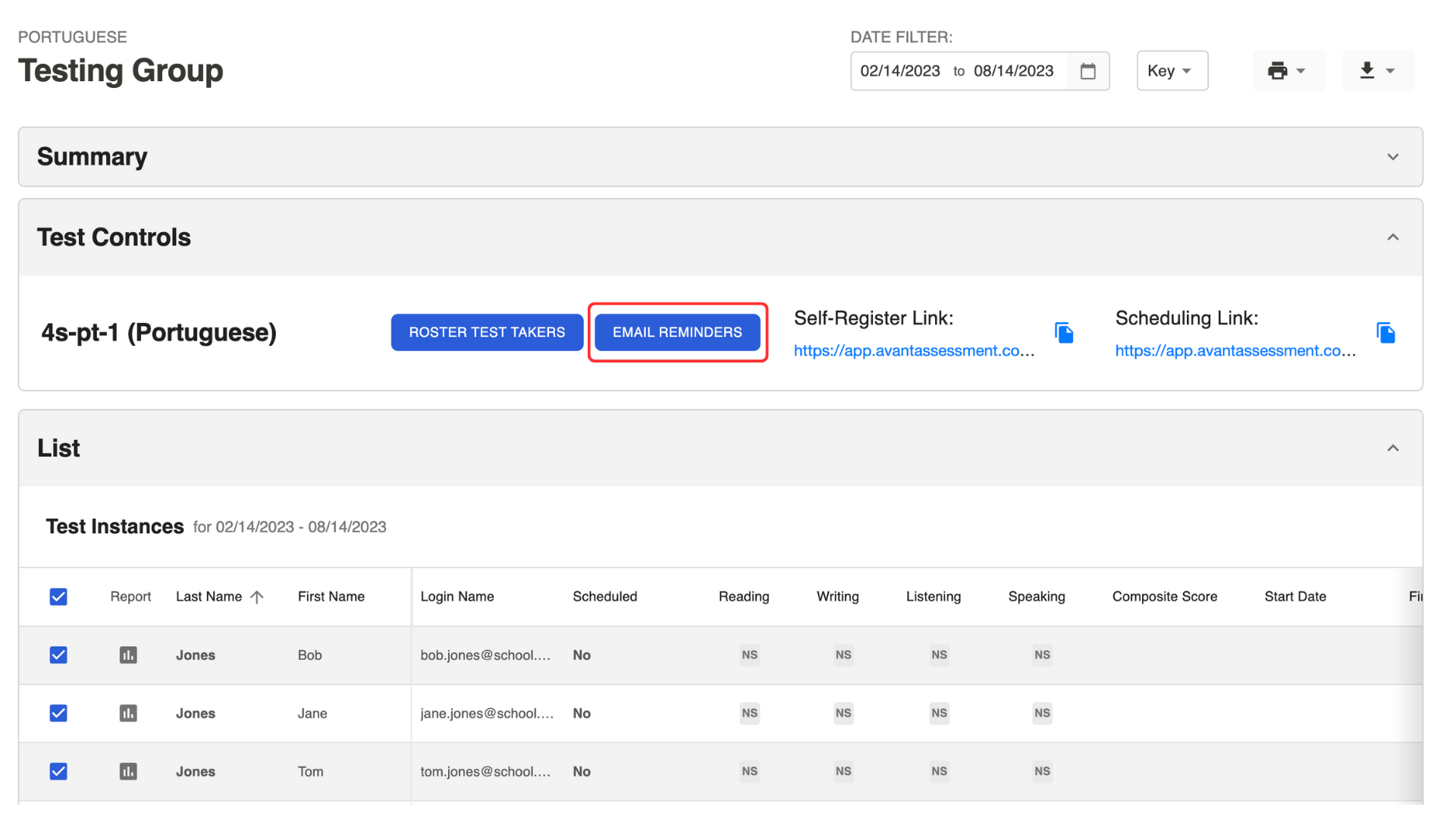
2. Click the Email Reminders button under the Test Controls section.
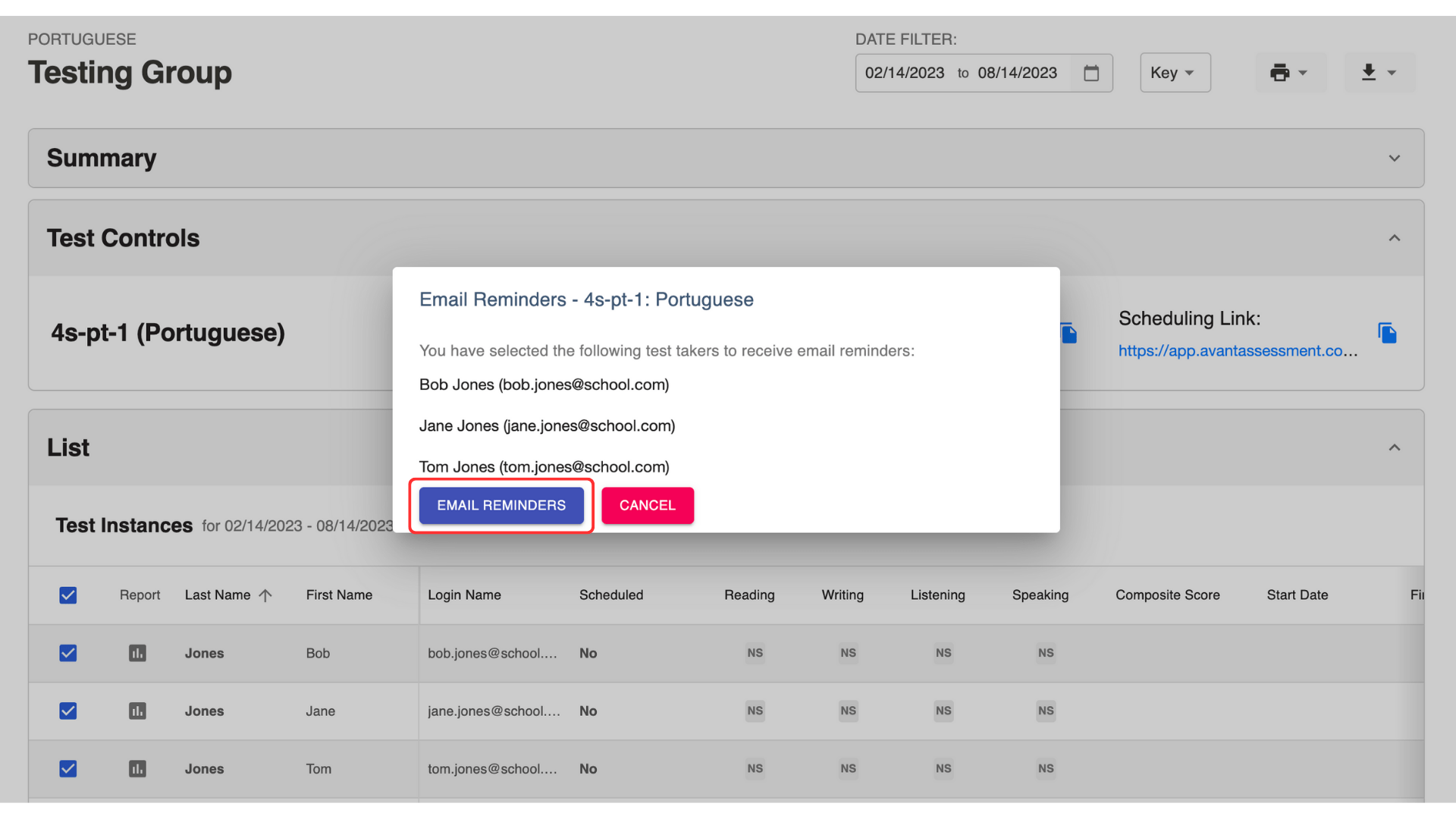
3. Click the Email Reminders button in the pop-up window.
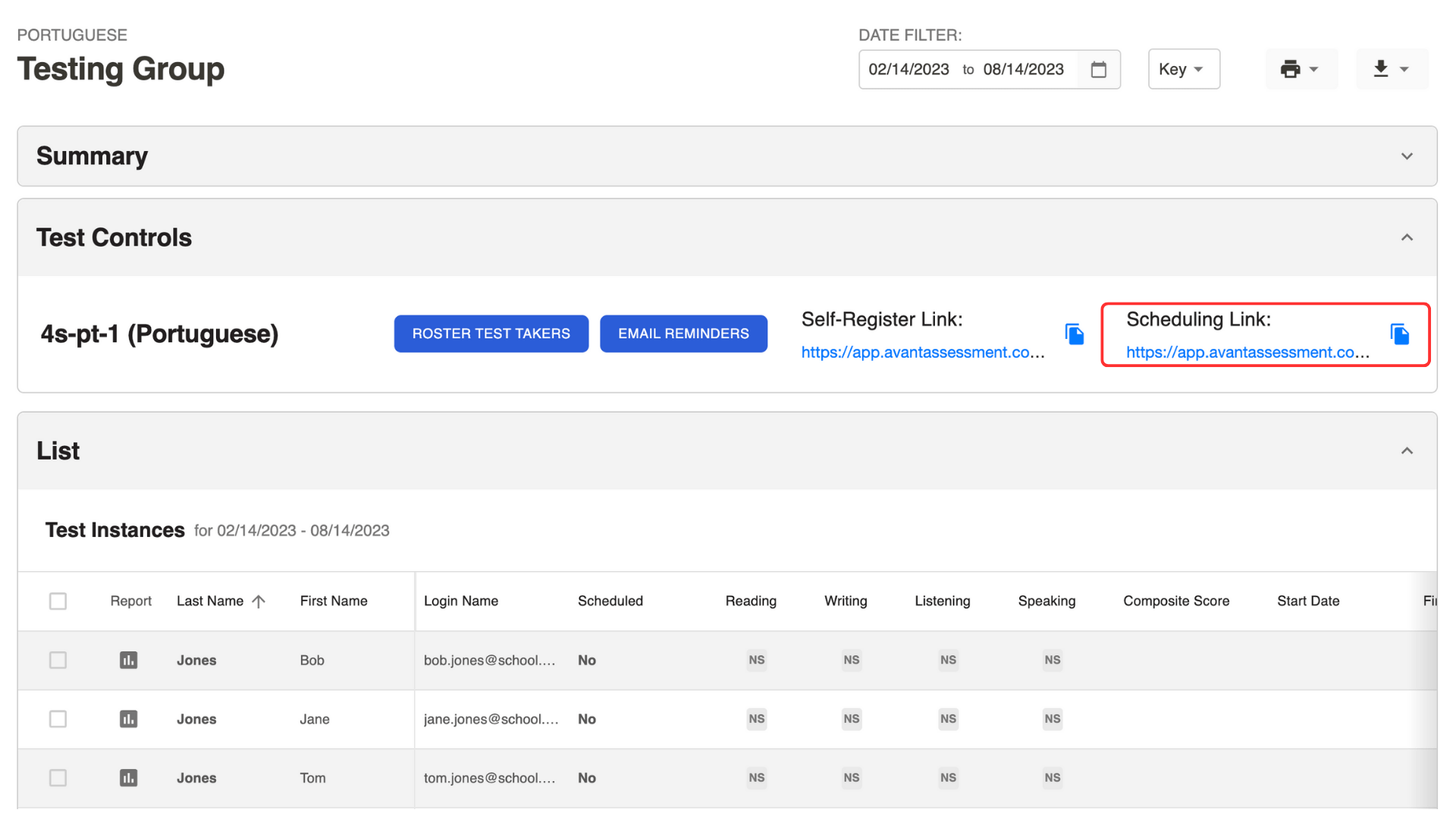
You can also copy the scheduling link under the Test Controls section and send it in an email.
Check Who Scheduled a Test
Check the column “Scheduled”:
- No – a test session is not scheduled.
- 08/15/2023 10:00AM – a scheduled test session has not started yet.
- 08/15/2023 11:00AM* – a test session has been rescheduled.
- 08/15/2023 09:00AM – a scheduled test session has started but the test has not been completed.
- 08/15/2023 08:00AM – a test has been completed.
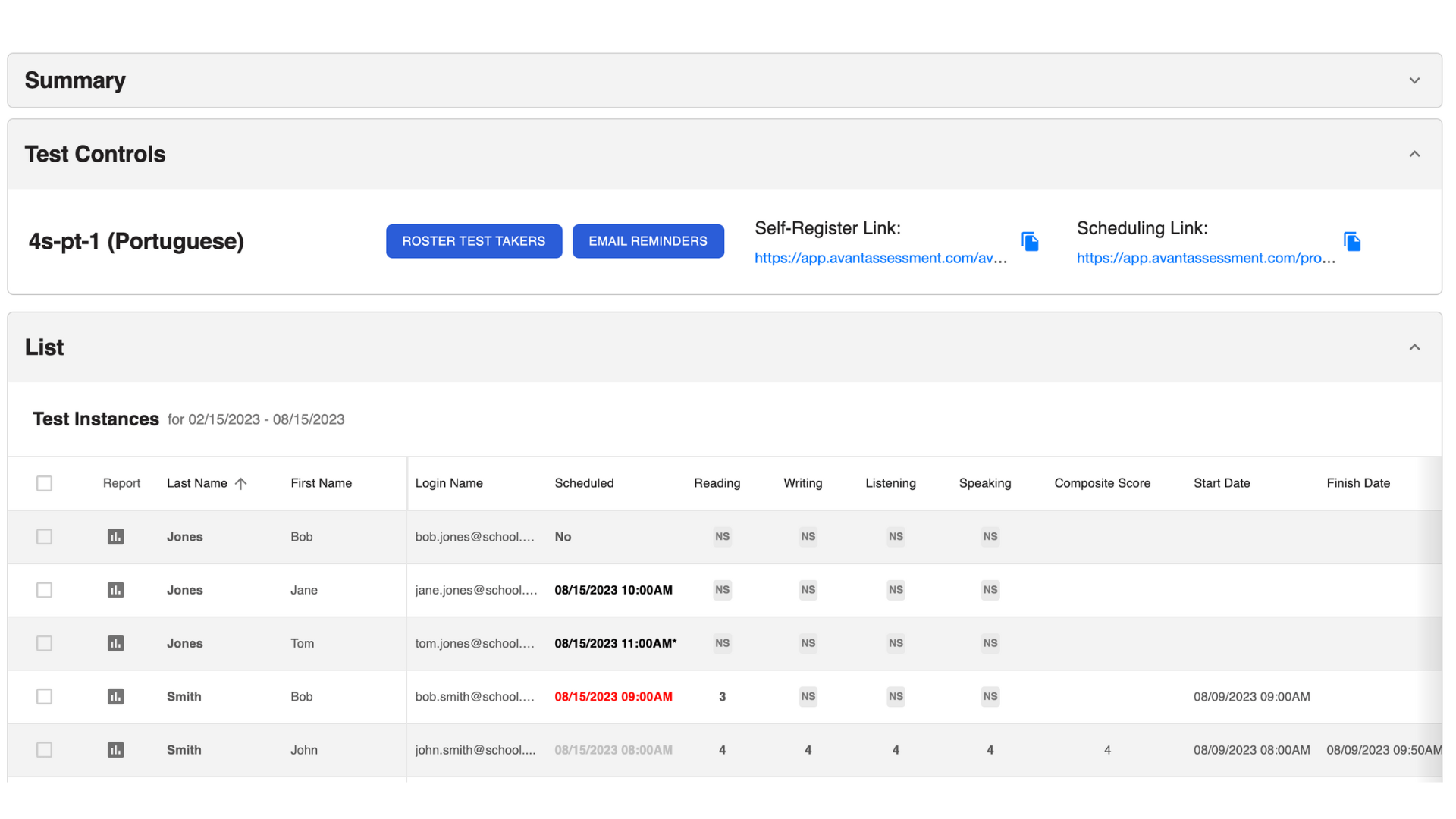
Click on the information under the column “Scheduled” to open the sidebar and review the schedule information for each test taker:
- Scheduled (Yes/No)
- Scheduled Time
- Link to Test

Send Reminders
- Select test takers from the list.
- Click the Email Reminders button in the Test Controls box.
- Click the Email Reminders button in the pop-up window.
Test takers who scheduled a test will receive a reminder email with the Test Access Link.
Test takers who have not scheduled a test will receive an email with a Scheduling Link to schedule a test.
Technology Requirements
Review technology guides to troubleshoot any issues:
Remote Testing Rules (updated 1/08/2026)
Failure to comply with any of the rules below or any other inappropriate behavior will be recorded and reported to your testing coordinator.
Testing Area
- You must sit at a desk or table.
- No dictionaries, textbooks, cell phones, paper, pens, or other support materials (e.g., Siri, Alexa, smartwatches) are allowed in the testing area during the test.
Any form of AI support, digital capturing, or browser-enabled features, such as spell checkers, voice-over features, and audio captioning, is strictly prohibited and may result in test closure.
Use of the proctor’s chat box to prepare or organize your ideas on any section of the test is not allowed and may result in test closure. - The lighting in the room must be bright enough to be considered “daylight” quality. The proctor should see your face and surroundings clearly. The source of light must not be behind you.
- The room should be as quiet as possible. Background music or television are not permitted.
- No other person is allowed to enter the room or engage with the test taker during the test. Inappropriate behavior is cause for immediate test closure. You will not be allowed to continue, and you may not receive a refund.
- All remote sessions have a standard duration of 3 hours for any test product and an access time buffer of 30 minutes (unless otherwise stated by your testing coordinator). Additional time may be given by your proctor under certain circumstances.
Test Taker Computer
- Only one screen is allowed. External monitors and split screens are not permitted.
- Google Chrome and Microsoft Edge are the only supported browsers. No incognito mode is allowed.
- No additional applications (e.g., Word, email, chat) or browser windows are allowed to be open during testing.
- Only one browser tab may be open.
- No applications may be running in the background, such as messengers, code-developing tools, Zoom, or any form of screen recording.
- For troubleshooting purposes, proctors may share authorised links with you to access while testing.
- Browser-enabled virtual backgrounds and avatars are not allowed. This must be disabled before testing time.
- If you are testing for writing in a special character language, you must configure, install, and verify that you have the correct virtual keyboard prior to starting. Google Input Tools are currently unavailable for remote proctoring.
- If you are testing on an Apple computer, you may need to configure privacy settings accordingly and refresh your exam tab after making the suggested changes. Instructions can be found here.
Test Taker Behavior
- Verify your identity using a photo ID that has your name and photo on the same side.
- Only IDs with Romanized text (Latin characters) will be accepted.
- For Russia, an International Passport with Romanic characters or any other form of ID, as validated by the testing institution, that appears in English is required.
- Dress as though you were in a public setting. Removal of clothing is cause for test closure.
- Do not communicate with any other person by any means. Any evidence of a phone call dialogue, chat, or virtual meeting while testing may result in test closure. You will not be allowed to continue, and you may not receive a refund.
For testing centre administration with AvantProctor, your in-house proctor may assist with hardware/software troubleshooting, but our remote proctors remain in control of your testing conditions, including bathroom breaks. - Do not use a phone for any reason.
- Do not copy, record, print, take screenshots, or audio-capture any test content.
If your testing coordinator requests proof of exam completion, please ask your AvantProctor for assistance. - Do not leave the room during the exam. Bathroom breaks are only allowed between sections and limited to 5 minutes. You must notify the remote proctor via the chat box before you leave.
- Do not leave the exam unattended and open for any reason.
- You must click on “STOP TEST” before leaving.
- Report to your proctor when you are back.
- Any profane language or any act of violence while monitored by AvantProctor, directed toward our proctors or others, may result in test closure. You will not be allowed to continue, and you will not receive a refund.
- Test takers are expected to follow all proctor instructions provided in the chat box. After 3 minutes without a response or compliance, an alert beep will sound, and a red mark will appear in the chat box indicating that you have missed messages. Failing to follow instructions may result in exam closure. You will not be allowed to continue, and you may not receive a refund.
Important
Remote proctors are authorised to monitor, review, and assess your testing behaviour. Any unauthorised, negligent, or inappropriate behaviour captured while testing may be reported to your institutional code of conduct department or testing coordinator.
Our remote proctors may warn you about unauthorised practices via chat or provide mandatory instructions to the above-mentioned rules with strict compliance expectations. Rule violations may result in termination of your test access. Avant reserves the right to restrict test access and scoring processing for those individuals who do not follow instructions as mandated by your proctor via chat (in the bottom-right corner of your testing interface).
Violations of these test rules may result in a zero score if there is sufficient and compelling evidence of inappropriate behaviour, including misconduct, negligence, or the improper use of technology—such as deliberate interruptions of monitoring—during the testing period.
General Testing Rules
Remote test takers are responsible for both the remote testing rules as well as the general Avant Testing Rules.

- Do not click outside the test window. This is tracked and will log you out of the test.

- Do not use any support materials (e.g., dictionaries, textbooks, cell phones, apps, messaging tools, or translation aids such as Google Translate).

- Do not take notes (paper-based or electronic). Paper, pens, pencils, styluses, etc. are not allowed.

- Do not read/use any notes or support materials for your speaking/expressive responses.

- Do not communicate with anyone except the proctor during the test.

- Do not share test questions or prompts. Do not copy, print, or take screenshots of the test.

- Do not use violent, profane, or inappropriate language in your responses.
Frequently Asked Questions
Here are a few of the most common questions regarding AvantProctor. Please reach out to us regarding any other questions that you may have.