
This Guide outlines the additional steps needed for administering the Avant Arabic Proficiency Test (APT) with the special handwritten option for the Writing section:
Handwritten Writing Section Overview
This Guide outlines the additional steps needed for administering Avant APT Assessment with the special handwritten option for the Writing section.
The special handwritten option for the Writing section is pen and paper responses instead of the conventional keyboarded Writing section which is taken online. This option (handwritten or computer input) can only be set at the class or group level and not at the test taker level. For more information on the regular keyboarded Writing section, see the Writing Input Guide.
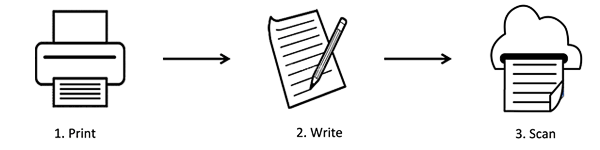
The handwritten option requires the proctor to print the writing prompts for each test taker, distribute to test takers, and then collect and scan the responses to send to Avant. Below is a workflow diagram of the process. Continue reading for further instructions.

Printing
Proctors can select to print the writing prompts for all test takers who are eligible or for specific test takers. A color printer is recommended.
After the test taker has completed the Reading section, the proctor logs into the reporting website (app.avantassessment.com/login) to print writing prompts. There are 3 writing prompts per test taker, and each prompt will print only one page, for a total of 3 pages for each test taker.
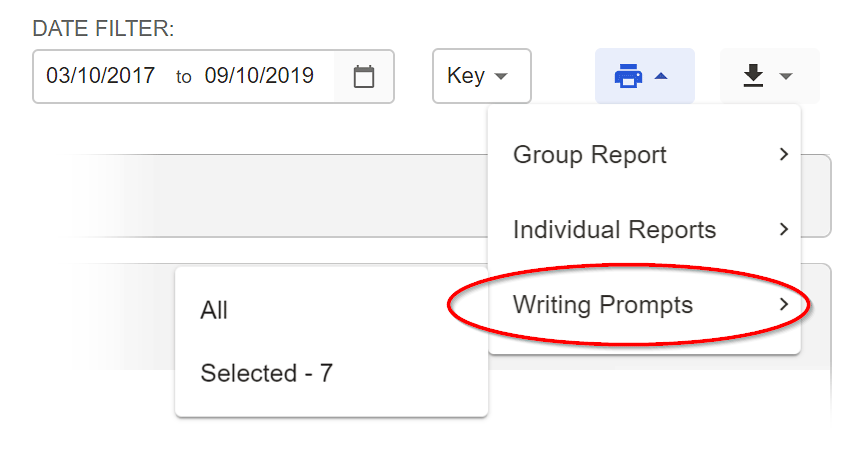
Click Print > Writing Prompts > All to print the writing prompts for all eligible test takers.
Click Print > Writing Prompts > Selected to print writing prompts for specific test takers.
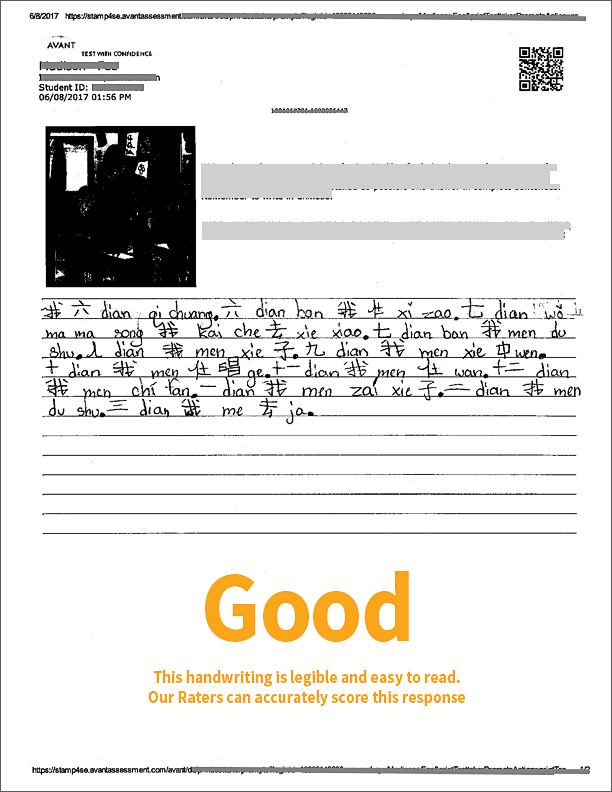
Each printed prompt will have the test taker’s first name, last name, and login name, as well as the testing group name and a QR code (similar to a bar code). Each prompt will also display an image (or series of images) followed by directions for writing a response.
Escritura
The Proctor distributes the blank writing prompts to test takers, ensures these guidelines are followed, and then collects them.
- The writing responses are limited to one page for each prompt.
- Test takers are to only write on the front side of each prompt and there should be no part of the response on the back side of any page.
- Do not use additional sheets of paper, as our system will not recognize them and they will not be rated.
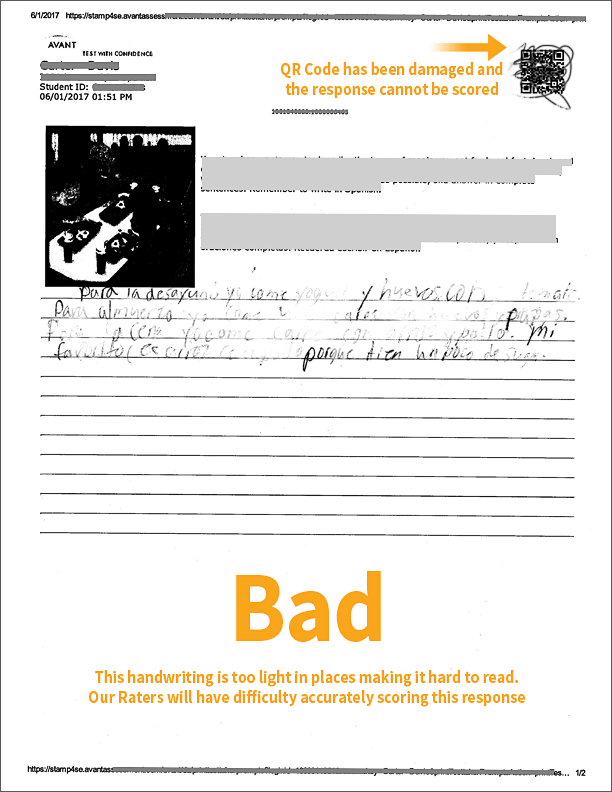
- Test takers should do no writing or scribbling in the QR code area or damage that area in any way.
- Pencils ARE NOT ALLOWED because the responses become hard to read after scanning.
- Once the test taker has received the sheets for the writing prompts, they should not leave the sheets unattended or leave the room at any time.
- When finished, the test taker will submit all pages to the teacher/proctor, even submitting the sheets they didn’t write on.
- For more information on what our raters are looking for in a response, please see the Proficiency Levels & Rubric/Scoring Guide.
Scanning
After the proctor collects the completed responses from the test takers, they can be scanned and saved to a computer in PDF format. Proctors will also need to submit blank writing prompts from test takers, not just the ones they were able to complete. Avant will send a Writing Submissions Dropbox link along with your Test Set-Up form. To submit your PDF writing responses, go to the link and upload the PDFs there.
- Pages need to be scanned right side up and vertically oriented.
- Scans should be done in Color or Grayscale.
- DO NOT scan as Bitmap.
- All test taker’s pages must be scanned and uploaded in order to receive a score, even the blank pages the test taker didn’t write on.
- Scan all responses from the same test taker grouped together, before scanning responses from the next test taker.
- Avoid submitting duplicate response for the same test taker.
- The PDF files can be large file sizes (up to 2GB each), and contain responses from multiple test takers.
- PDF filenames should include the name of the school and testing group, or test taker names.
- Before submitting PDF files to Avant, ensure the responses are legible and not too light to read in the PDFs, so they can be accurately rated.
- Upload writing responses to the Writing Submissions Dropbox link.
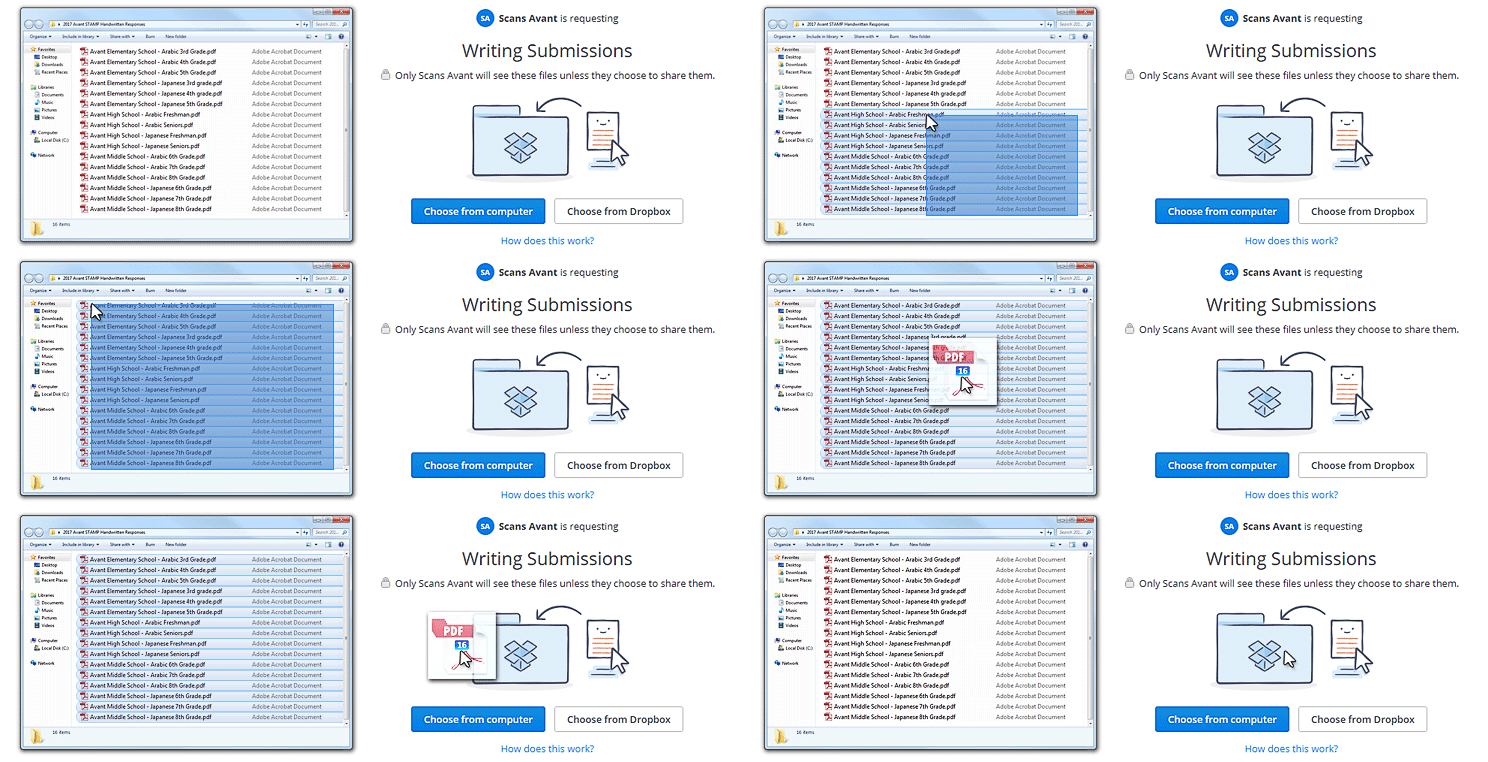
Go to the Dropbox link to drag and drop files or click “Choose from computer” to browse for files to submit. You do not need your own Dropbox account.
If an error message is seen or you experience issues uploading files to Dropbox, try the suggestions here or contact Avant Support .
.
Rating
The following Statuses will display throughout the course of administering the handwritten writing section.
Pending – Test taker needs to complete the Reading section before writing prompts can be printed
Printable – Prompts are ready to be printed
Printed – Writing prompts have been printed for the test taker
IP (In Progress) – Writing responses have been partially uploaded. This can be an indication that not all writing responses were submitted for this test taker and may still need to be submitted to Avant
SP (Scoring in Progress) – All writing responses have been uploaded and rating is in progress
Avant transfers the handwritten writing responses from Dropbox to Avant’s rating system, where raters will rate each response. The individual response scores will be used to calculate the Proficiency Level that will appear on the Results page.
Writing scores for handwritten writing responses are typically available within 25 business days. Writing status will display as Printed/IP (In Progress) until all responses have been uploaded and then will display as SP (Scoring in Progress) until all responses are rated.
Note: Do not shred any writing response pages until the Results page displays the Writing Proficiency Levels.