
Acceda a los Resultados de la Prueba
Inicie sesión en el Informe de Resultados

To access the STAMP for ASL Results Report, follow these steps:
- Ve a https://app.avantassessment.com/login.
- Ingrese el Código de Prueba y la contraseña proporcionados por Avant Assessment.
- Haz clic en el botón INICIAR SESIÓN.
Para ver cómo acceder al Informe de Resultados a través de Astuto o ClassLink, vaya a la página de Integraciones .
Pantalla de Resumen
Si está utilizando un código de visualización de distrito/organización o escuela/suborganización, utilice la Lista de Escuelas/Ubicaciones para desglosar hasta el grupo de clase/prueba deseado. Para solicitar un inicio de sesión de escuela/distrito, contacte a Avant Support.
The testing group overview screen shows a score summary followed by a list of test takers. Results are organized by the two STAMP for ASL skills: Receptivo and Expresivo. Click a Report icon to view an individual report, or click a test taker’s name to review details and responses.

Búsqueda de Examinado
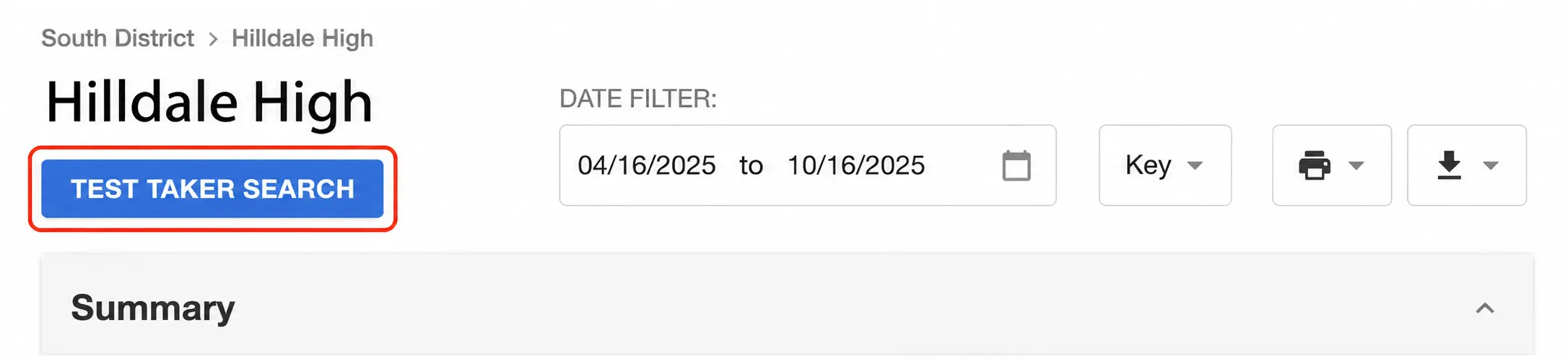
Los administradores de Distrito y Escuela pueden buscar a los estudiantes haciendo clic en el botón "Búsqueda de Examinado" en las pantallas de informes de Distrito o Escuela.
La función de Búsqueda de Examinado incluye un conjunto de filtros como "Idioma", "Nombre", "Apellido" y "Rango de fechas". Haz clic en "Buscar" para ver todos los examinados que coinciden con tus filtros.
Para imprimir informes marca la casilla para cada participante del examen que desees imprimir y luego haz clic en “Imprimir“.
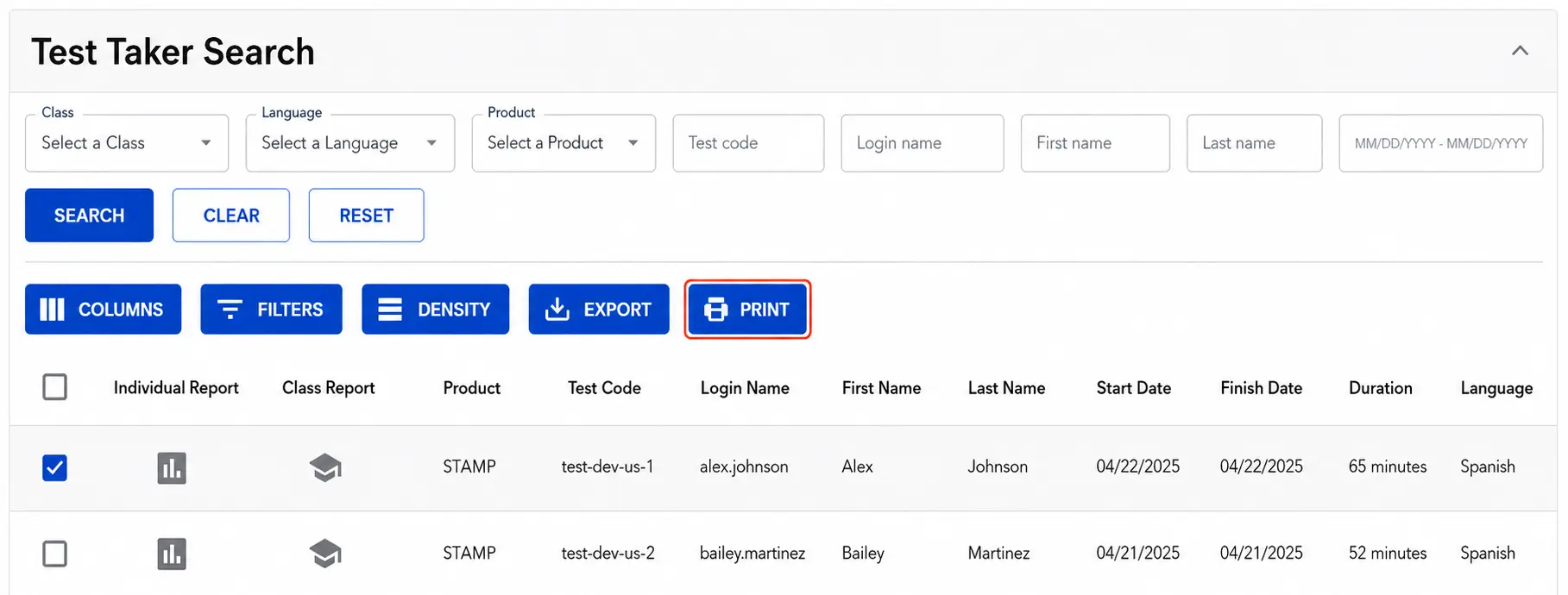
Nota: Por defecto, el "Rango de fechas" está configurado para el último año de prueba a partir del 1 de agosto. El Rango de fechas se aplica a la "Fecha de inicio" para cada examinado. Si no puedes encontrar a un examinado esperado, intenta ampliar el rango de fechas o elimínalo presionando el botón "Borrar".

Filtro de Fecha
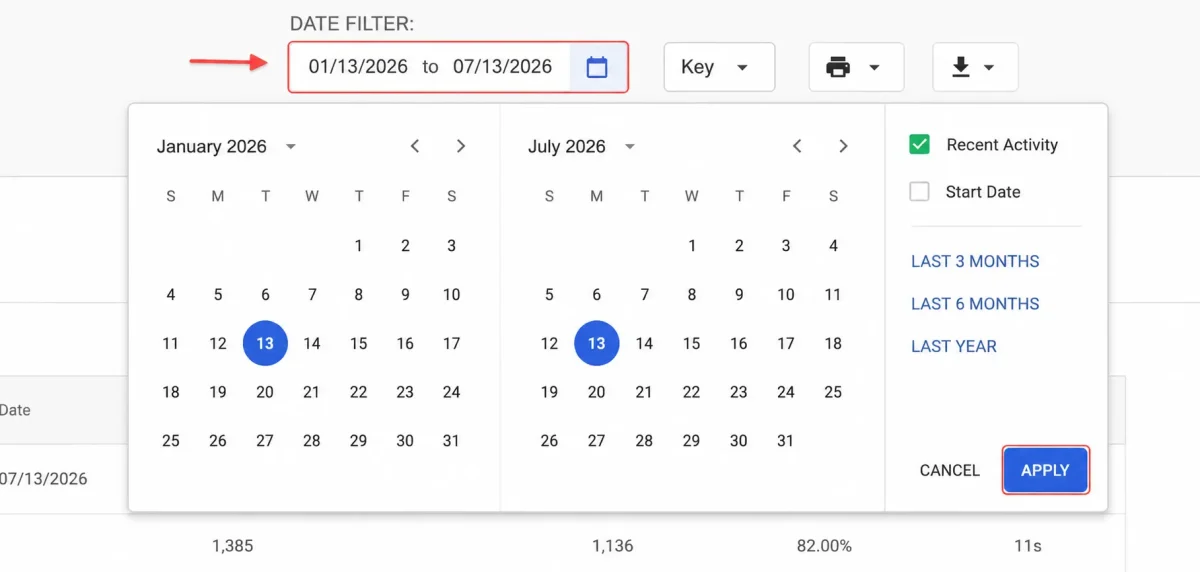
De forma predeterminada, el Filtro de Fecha muestra los resultados de las pruebas de los últimos 6 meses.
Para seleccionar un marco de tiempo diferente, escriba la fecha o haga clic en el calendario. Luego, haga clic en APLICAR. También hay preajustes que se pueden seleccionar para mostrar los Últimos 3 Meses, Últimos 6 Meses, y el Último Año de pruebas. El Filtro de Fecha también se puede modificar para buscar por Fecha de Inicio o Actividad Reciente.
Monitorear el Progreso del Test
Testing Coordinators can use the Results Report to:
- Look up a test taker’s Login Name.
- Track progress in the Receptivo and Expresivo sections.
- Review available scores and open individual reports.

1. Busque cómo se ingresó el Nombre de Usuario del examinado.
2. Siga el progreso de los examinados.
3. Revise los resultados de las pruebas.
Puntuación de la Prueba y Estado
Benchmark Levels are grouped into three major proficiency levels: Novice, Intermediate, and Advanced. Each includes Low, Mid, and High sub-levels. The benchmark scale below helps explain the levels reported for Receptive and Expressive.

Estados

NS (Not Started): The test taker has not started this section. If both Receptive and Expressive show NS, the test taker has completed only the Profile.

IP (In Progress): The test taker has started but has not completed this section. For the Expressive section, click IP to view the status of submitted responses.

SP (Scoring in Progress): The Expressive section has been submitted, but rating is not complete for one or more recorded video responses. Click SP to review rating progress.

NR (Not Ratable): The Expressive section may show NR when raters cannot rate any of the recorded responses. Causes can include missing or unusable video or an obstructed view of the signer. See possible reasons for NR (Not Ratable).

Zero Score (0): A zero may be assigned to an Expressive response that does not demonstrate ratable ASL proficiency, such as a response with no meaningful attempt, one that is entirely in a different language, or one that is off topic. See possible reasons for a Zero Score (0) and the Testing Rules.
Revisar Resultados de Pruebas
Receptive Section Scores
The Receptivo section measures how well a test taker understands signed ASL. It is computer-adaptive and computer-scored. Receptive scores are available as soon as the test taker completes the section; refresh the Results Report to see updated scores.
Puntuaciones Escaladas
In addition to the benchmark level, the Receptivo section includes a Scaled Score. This number provides more detail about a test taker’s performance within a benchmark level and can help measure growth over time. Expressive does not have a scaled score. See the STAMP Guía de Puntuaciones Escaladas for ASL ranges.
Expressive Section Scores
The Expresivo section measures the test taker’s ability to communicate in ASL through recorded video responses. Expressive responses are sent for rating only after the test taker completes and submits the full assessment. Responses are rated by Avant Certified Raters, and scores are typically available within 25 business days of submission.
Accessing Expressive Video Responses
You can review the recorded video responses that test takers submit for the Expresivo section. Click the Expressive section score or status to open the section details.
Click Response 1, Response 2, or Response 3 to view the video for a specific prompt. Reviewing these recordings can also help explain a Zero (0) or NR (Not Ratable) result.

Indicadores de Alto (H) y Bajo (L) para Respuestas Individuales
High (H) and Low (L) indicators help show variation among a test taker’s individual Expressive responses. When shown in the response details, they can help coordinators and teachers understand performance within a proficiency sub-level, in a way similar to how Receptive scaled scores provide additional detail.
Puntuación Compuesta
The Puntuación Compuesta is available once both Receptive and Expressive have been completed and scored. For STAMP for ASL, it is the average of the two section scores: (Receptive + Expressive) ÷ 2. For example, Receptive 4 and Expressive 5 produce a Composite Score of 4.5.
Pruebas de Promedios del Grupo A
The summary chart shows average scores for Receptivo, Expresivo, and Composite. Each skill average is calculated from test takers who have a score for that skill. The Composite average is calculated from test takers with an available Composite Score.

Distribución de los Examinados a lo Largo de los Niveles
The bar graphs show the percentage of test takers who scored at each benchmark level for the two STAMP for ASL skills: Receptivo and Expresivo. Each skill has its own distribution.


Informes Individuales
Access and download individual STAMP for ASL reports. For a complete report with both Receptive and Expressive scores, wait until all testing and rating is finished.
Cómo acceder a los Informes Individuales para uno o todos los examinados
Crea un Informe Individual para un participante específico de la prueba:
- Haz clic en el icono de Informe
 para acceder al Informe Individual de un examinado.
- Haz clic en el icono de impresora
 para imprimir el Informe Individual. Verás un cuadro de diálogo de impresora dentro de tu navegador.
- Puedes crear una versión PDF del informe si tu selección de impresora incluye un escritor PDF.
- Puedes imprimir un Informe Individual en una página haciendo clic en “Más ajustes” y ajustando la Escala.
Crea Informes Individuales para múltiples o todos los examinados en la lista:
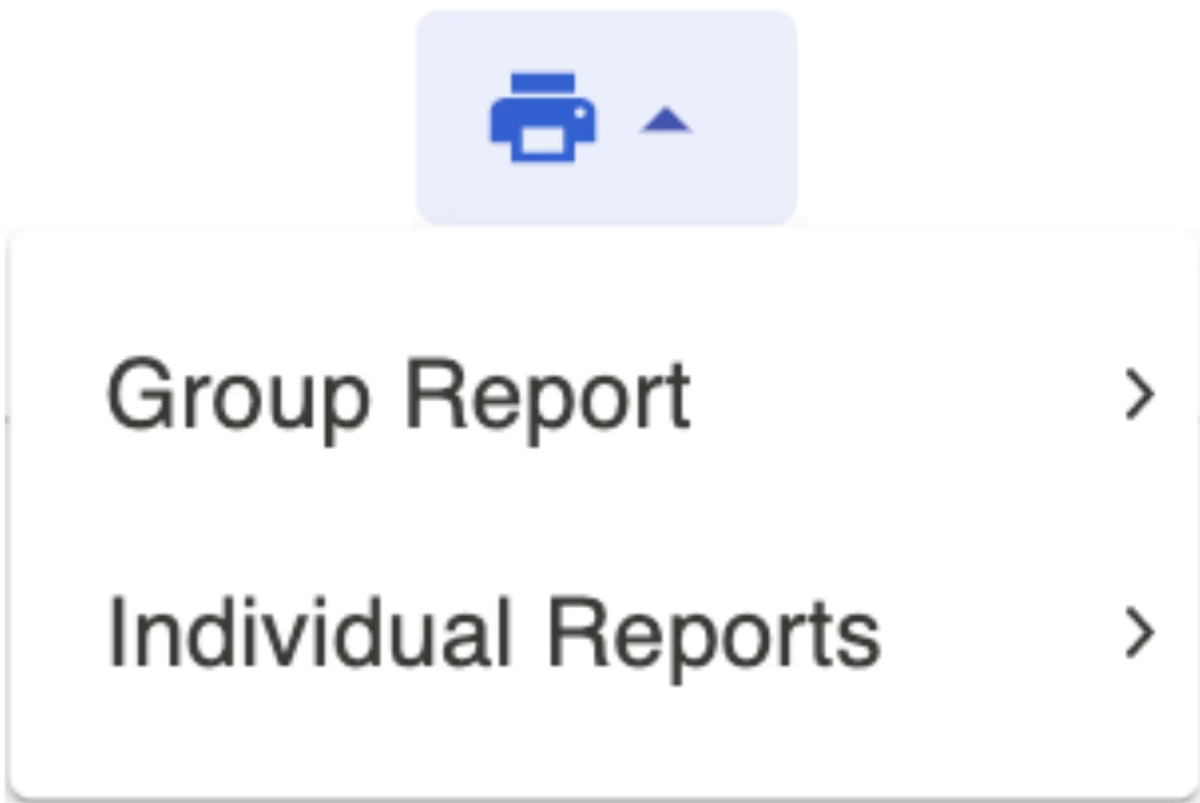
- Haz clic en el cuadro a la izquierda de los examinados para los que deseas generar informes.
- Haga clic en el icono de la impresora, luego haga clic en Informes Individuales y luego haga clic en Todos o Seleccionados.
- Haz clic en el icono de la impresora en el informe.
Herramienta Divisora de PDF
When you download multiple Individual Reports, they are combined into a single PDF.
Some schools prefer to distribute a separate PDF to each test taker. Use our Herramienta Divisora de PDF to split the combined PDF into individual files named for each test taker (for example, Joe-Brown.pdf or Jane-Smith.pdf).
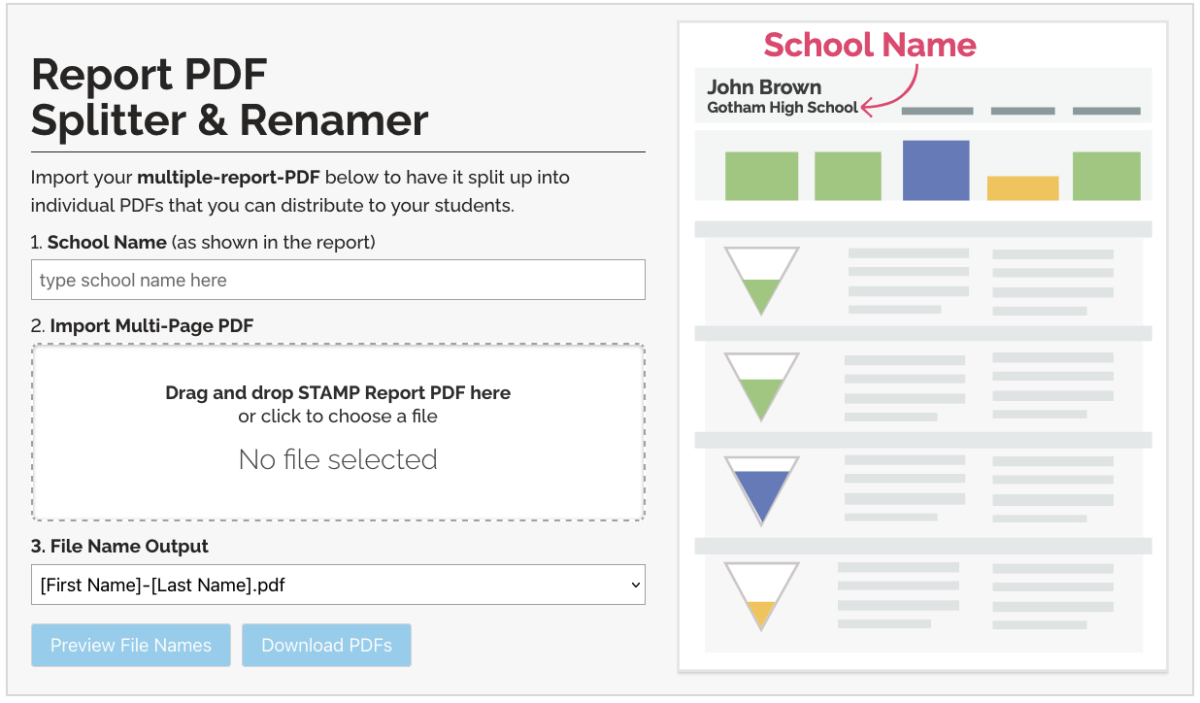
Ejemplo de Informe Individual

Individual Reports include the following information:
- Receptive Section score (computer-scored by Avant)
- Expressive Section score (rated by Avant Certified Raters)
- Puntuación Compuesta
- Descripciones de Niveles
- Suggestions to Power Up to the next level
Each test taker’s report includes a scoring graphic for Receptivo and Expresivo, showing the benchmark level attained. A Composite Score summarizes performance across both skills.
The Receptivo scoring graphic appears after the test taker completes that section. The Expresivo scoring graphic appears after Avant finishes rating the video responses.
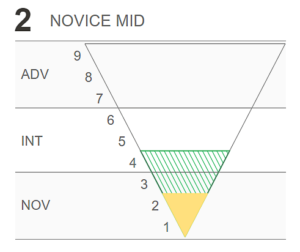
For the Expresivo section, an additional shaded area may appear if one response is rated at a higher level. This highlights a range of proficiency levels across the test taker’s signed responses.
The Level Description field explains what test takers at each level can generally do with ASL.
The Suggestions field provides ideas to help test takers develop their skills and advance to the next level. See the Avant Power Up Guide for more information.
If desired, you can distribute the Individual Report to test takers or parents, along with the Avant STAMP Benchmark & Rubric Guide.
Descargar Resumen de Resultados
Download a CSV file containing STAMP for ASL test taker information and results. For the most complete results, wait until testing and rating are finished.
How to Download a CSV File

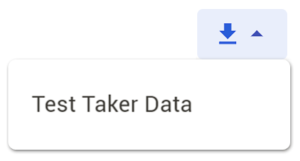
- Click the Download button. When the file options become available, select Test Taker Data.
- Follow the prompts to save the file to your computer.
What the CSV File Includes
The Test Taker Data download creates a comma-separated values (CSV) file that you can open in Excel or another spreadsheet application. You can sort, filter, or create a customized report using the fields you need.
Information in the CSV file falls into three groups:
Ingreso y Información de Perfil del Examinado
- Test Code, Login Name, First Name, Last Name, Grade (optional), Test Taker ID, and Test Taker Email (optional). Learn more about the Test Taker Profile.
Información del Grupo de Pruebas
- Test Code, State, District, School, Testing Group Name, and Language.
Test Results and Test Status
- Fields can include Receptive Score, Receptive Scaled Score, Receptive Length of Time, Expressive Score, Expressive Length of Time, Test Status, Composite Score, Start Time, Test Length, and Finish Time. Depending on the testing setup, additional fields may include remote proctoring and badge eligibility information.
Repeticiones y Reinicios
Under certain circumstances, retesting and resetting portions of the test may be permitted. For details about eligibility and requests for resetting, retaking, or reviewing a Receptive or Expressive section, see the STAMP Política de Puntuación.